
Take meeting minutes automatically in Microsoft Teams
Nobody has to take the minutes. 123 Notetaker AI joins your Teams meeting, writes down who said what, and when you hang up it emails a summary, the action items and the full transcript to you and, if you like, to everyone on the invite. Teams' own AI recap needs a Teams Premium or Microsoft Copilot license. This doesn't.
Set it up once
Do this in the first meeting. Your settings save, so every meeting after that runs the same way.
- In your Teams meeting, click More in the meeting toolbar, then Get more apps and agents. Search for "123 Notetaker", choose 123 Notetaker AI, then click Save.
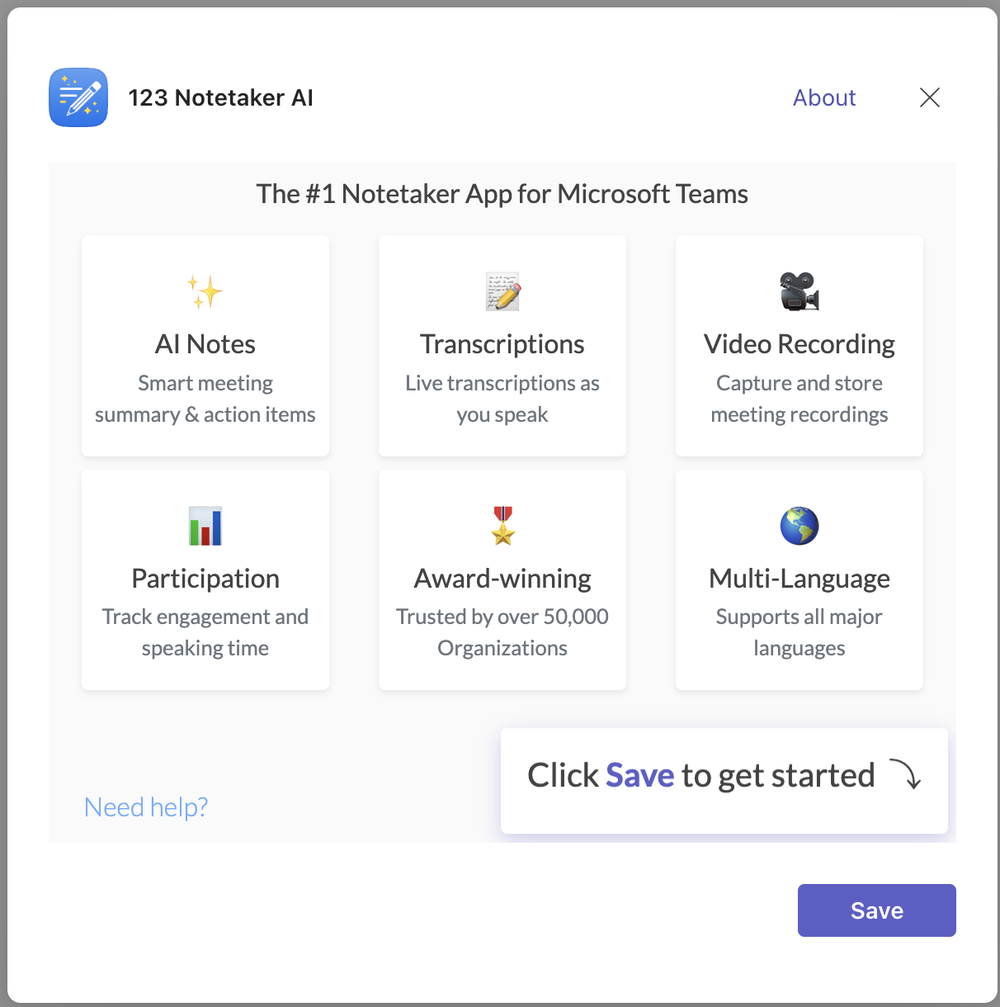 Save adds the app to the meeting and opens it in the side panel.
- Click the Settings tab. Check that Email Summary is on and that Email Address is where you want your copy. To send the minutes to the whole group, turn on Send Notes to Attendees.
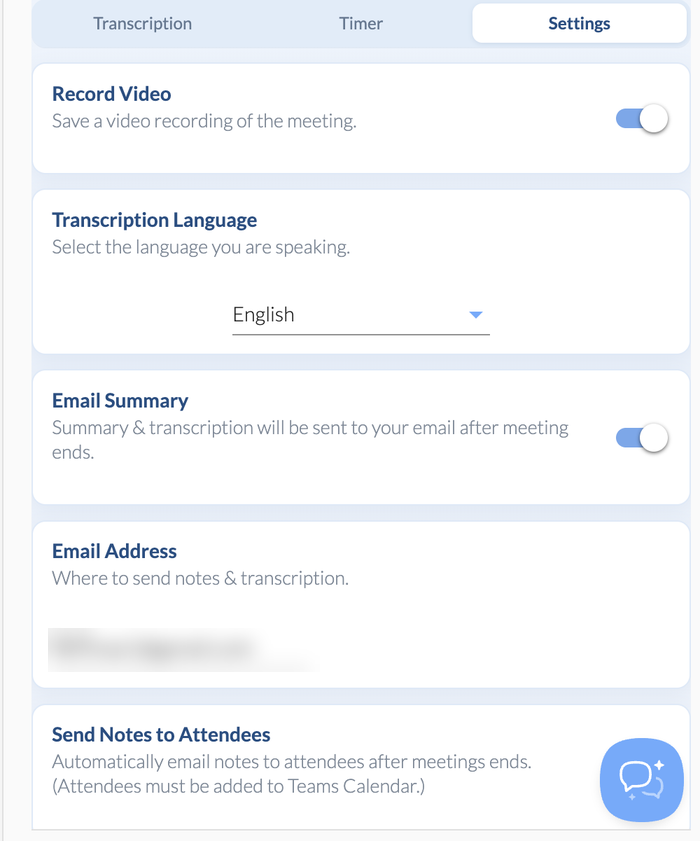 The Settings tab decides who gets the minutes.
- Pick the Transcription Language most people will speak. The minutes are written in that language.
- Admit 123 Notetaker from the lobby. Teams labels it Unverified and asks Admit this unverified bot?. Click Admit.
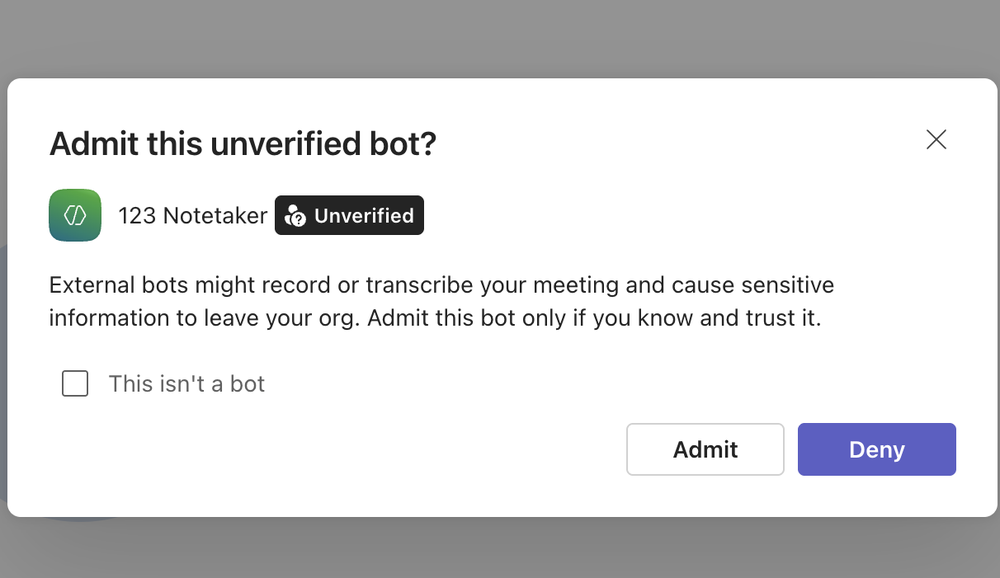 Click Admit and the notetaker starts listening.
 Save adds the app to the meeting and opens it in the side panel.
 The Settings tab decides who gets the minutes.
 Click Admit and the notetaker starts listening.
What the minutes include
The email arrives from BlueSky Notetaker AI with the subject "Meeting Notes for" and your meeting's title. Inside:
- A summary of what was discussed, from one paragraph to several depending on the length of the meeting.
- Action items, one per line, under Next Steps.
- A participation chart showing how long each person spoke.
- The full transcript attached as a PDF, with each speaker's name.
 The minutes arrive by email when the meeting ends.
The same notes stay in your BlueSky account, where you can download them as PDF or DOC. Here's where to find them.
Get better minutes
- Have people say their name before they speak if several share one room and one microphone. The transcript names speakers the way Teams does.
- Read the action items before you forward them. When nobody named a next step, the AI suggests some, and it can get things wrong.
- Only people on the Teams calendar invite get the attendee email. Add anyone else to the invite before the meeting.
Questions people ask
Can I use AI to take minutes in Microsoft Teams meetings?
Yes. Microsoft's own recap writes AI notes if your organization has Teams Premium or Copilot. Without them, an app like 123 Notetaker takes the minutes for you.
Can Copilot take meeting notes in Teams without recording?
Microsoft builds its recap from the meeting's recording or transcript. With 123 Notetaker you can switch Record Video off and still get a transcript, summary and action items. Here's how to transcribe without recording.
Who gets the minutes?
You, at the Email Address in Settings, and everyone on the calendar invite when Send Notes to Attendees is on. The first time, Teams may ask you to allow access to your meeting details in a Microsoft window. Accept it, or attendees won't get the email.
Does it cost anything?
The free plan covers two meetings a month, up to 60 minutes each. See the plans.
Step-by-step setup, with screenshots: How to use 123 Notetaker AI in a Microsoft Teams meeting.
Still stuck? Send us a message and our team will help.