
Transcribe a Teams meeting without recording it
Switch off one setting, Record Video, and 123 Notetaker AI keeps only the words: a live transcript during the meeting, then a summary and action items afterwards. No video or audio file is saved. It listens to the meeting as it happens, writes down what each person says, and lets the sound go.
This matters because a Teams recap is built from a recording or a transcript, and its AI summary needs a Teams Premium or Microsoft Copilot license. With 123 Notetaker you get a summary with neither a recording nor those licenses.
Turn off recording before the notetaker joins
- In your Teams meeting, open 123 Notetaker AI in the side panel. If it isn't in the meeting yet, click More in the meeting toolbar, then Get more apps and agents, search for "123 Notetaker" and click Save. After the first time it has its own button in the meeting toolbar.
- Click the Settings tab and switch Record Video off. Do this before you admit the notetaker from the lobby, so nothing is recorded from the start.
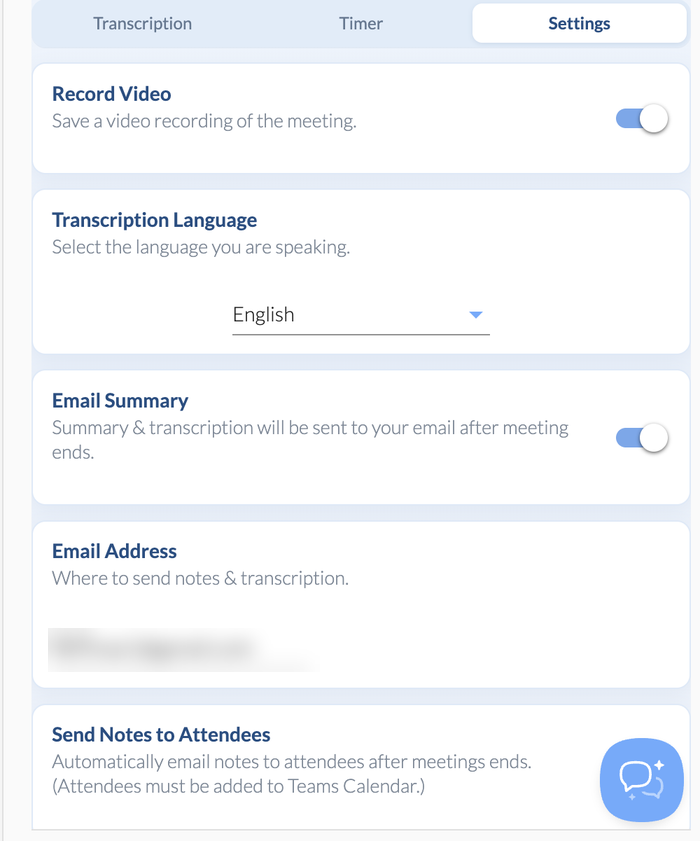 Record Video is the first switch on the Settings tab. Turn it off for a transcript only.
- Admit 123 Notetaker from the lobby. Teams marks it Unverified and asks Admit this unverified bot?. Click Admit.
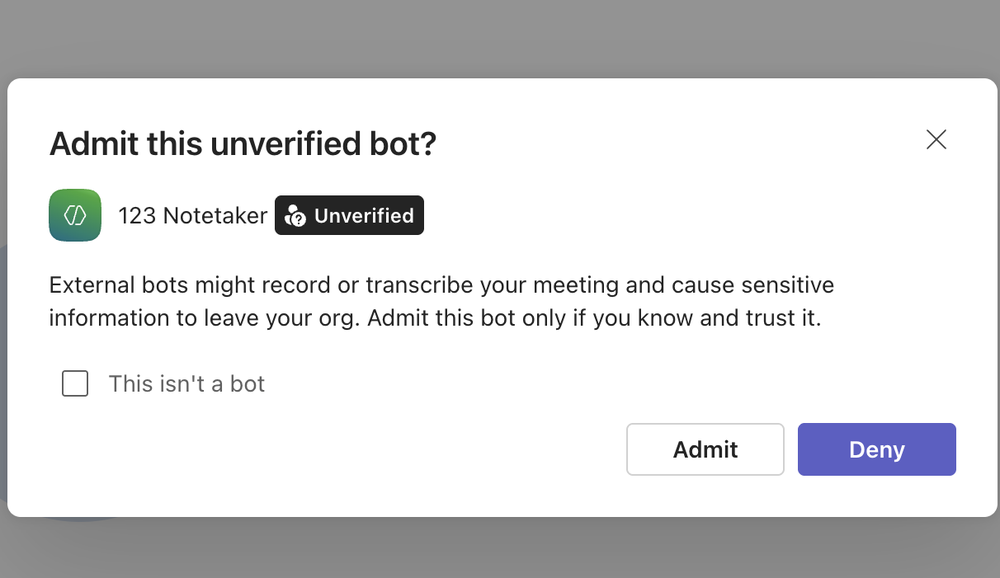 Click Admit to let the notetaker in.
- Talk as usual. Each line of the transcript appears on the Transcription tab after the speaker finishes.
 Record Video is the first switch on the Settings tab. Turn it off for a transcript only.
 Click Admit to let the notetaker in.
Your settings save for next time, so your next meeting starts with Record Video off too.
What you get without a recording
| What you get | With Record Video off |
|---|---|
| Live transcript in the meeting | Yes |
| Meeting summary and action items | Yes, written from the transcript after the meeting |
| Notes email with the transcript as a PDF | Yes, if Email Summary sends it to you |
| PDF and DOC downloads | Yes |
| Video to watch or download | No |
Your notes are in your BlueSky account under AI Meeting Notes. Here's where to find them.
If you switch it off partway through
Recording stops when you switch Record Video off, but the part already recorded is kept with that meeting's notes. To remove it, delete the meeting from AI Meeting Notes on blueskyapps.org. That deletes the transcript and summary too, so download the PDF or DOC first if you want to keep them.
Questions people ask
Can I transcribe a Teams meeting without anyone knowing?
No, and we built it that way. The notetaker joins as a participant named 123 Notetaker, someone has to admit it from the lobby, and anyone who opens the app in the meeting can follow the transcript. We'd suggest saying at the start that it's taking notes.
Does 123 Notetaker keep the audio?
Not with Record Video off. Our servers turn the sound into text as people speak and keep only the text. With Record Video on, the video recording includes the meeting audio.
Is the summary as good without a recording?
Yes. The summary and action items are always written from the transcript, so turning off the video doesn't change them.
Is it free?
The free plan covers two meetings a month, up to 60 minutes each, with or without recording. See the plans.
Step-by-step setup, with screenshots: How to use 123 Notetaker AI in a Microsoft Teams meeting.
Still stuck? Send us a message and our team will help.