
Get a Teams meeting summary and transcript without Teams Premium or Copilot
You can have a written summary, action items and a full transcript of your Teams meeting on any Microsoft 365 plan. Teams' intelligent recap writes AI notes too, but Microsoft requires a Teams Premium or Microsoft Copilot license for it. 123 Notetaker AI joins your meeting as a guest and does the same job without either.
What Teams gives you, and where it stops
Teams has a Recap for meetings that were recorded or transcribed. The AI-written parts of it, like the summary and AI notes, need Teams Premium or a Copilot license (Microsoft's page on intelligent recap). If your organization doesn't have those, the recap has no summary.
123 Notetaker needs no extra Microsoft license. You add it to the meeting like any Teams app, and it writes everything down itself.
Get a summary and transcript in four steps
- In your Teams meeting, click More in the meeting toolbar, then Get more apps and agents. Search for "123 Notetaker" and choose 123 Notetaker AI.
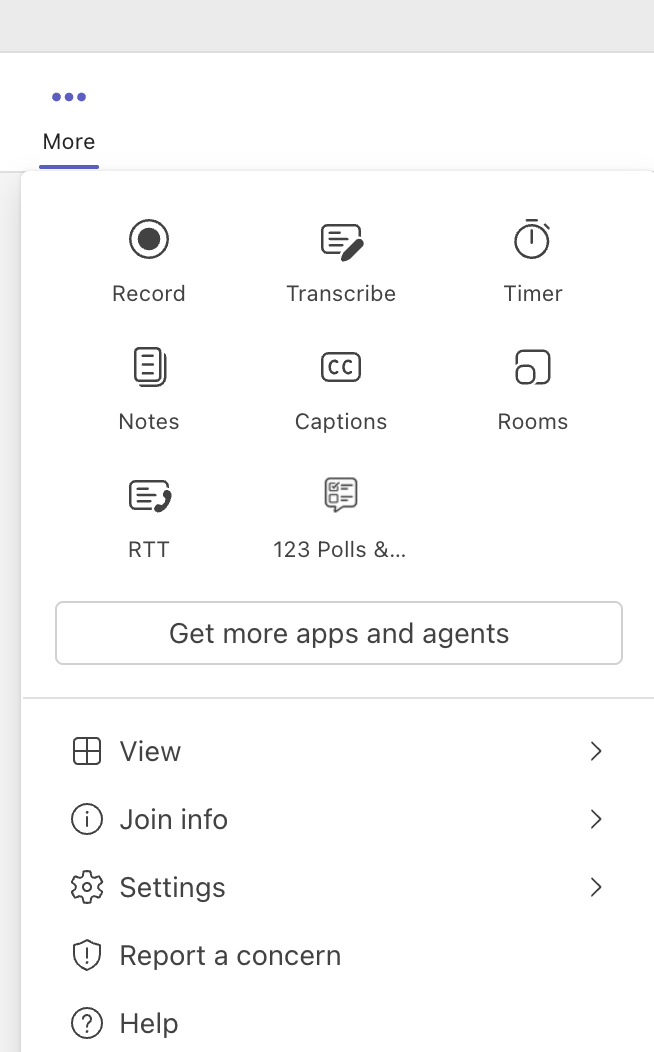 More, at the right of the meeting toolbar, holds Get more apps and agents.
- Click Save. The app opens in the side panel and invites the notetaker into your meeting.
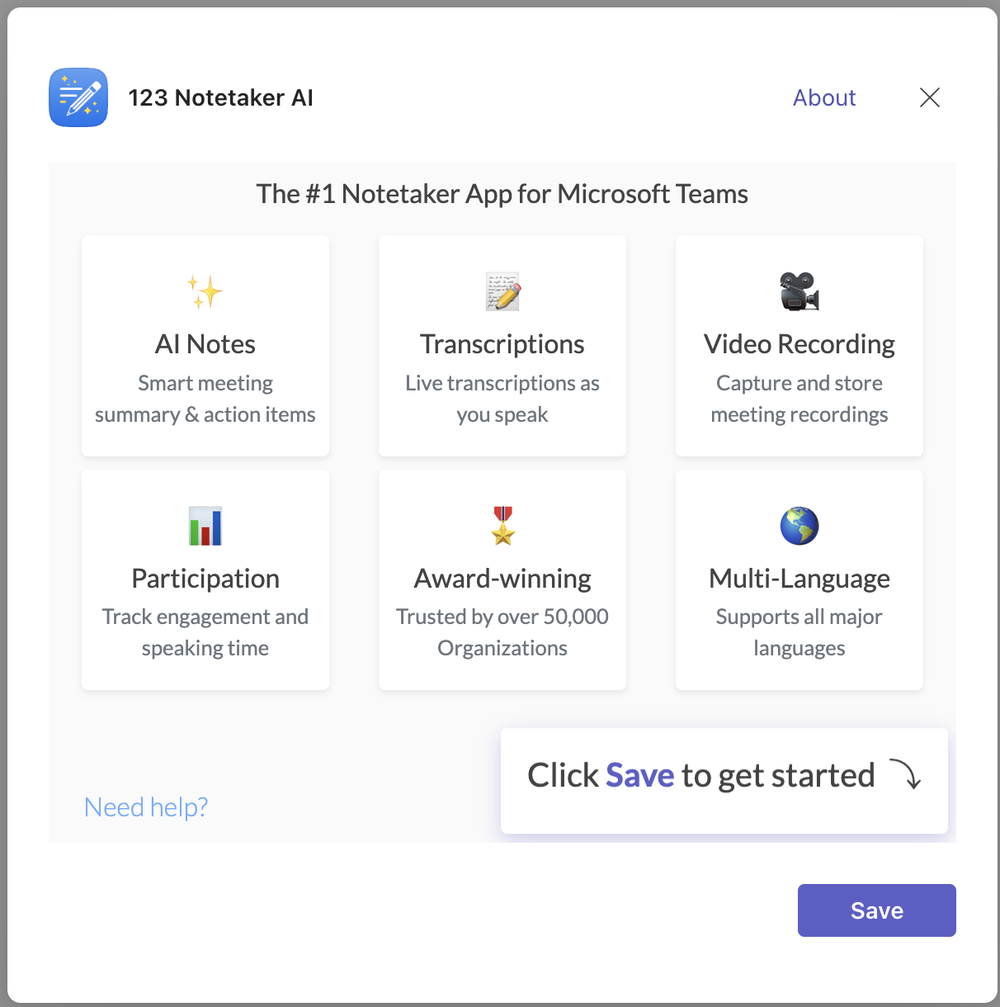 Save adds the app to this meeting.
- Admit 123 Notetaker from the lobby. Teams labels it Unverified and asks Admit this unverified bot?, so click Admit.
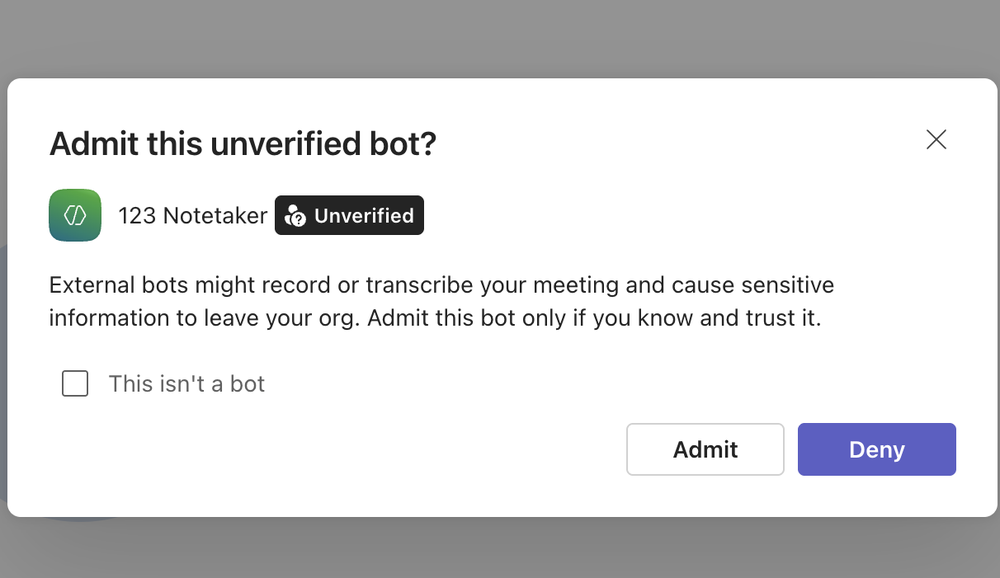 Teams asks before letting any outside notetaker in. Click Admit.
- Hold your meeting. The transcript fills in as people speak, and the summary and action items are written when the meeting ends.
 More, at the right of the meeting toolbar, holds Get more apps and agents.
 Save adds the app to this meeting.
 Teams asks before letting any outside notetaker in. Click Admit.
What you get afterwards
- A meeting summary of a paragraph or more, depending on how long you talked.
- Action items, one per line. If nobody named any, the AI suggests some, so read them before you share them.
- The full transcript with each speaker's name, plus a chart of who spoke and for how long.
- A notes email with all of this and the transcript as a PDF, if your Email Summary setting sends it.
- Everything saved in your BlueSky account, with PDF and DOC downloads, and the video if Record Video was on.
 Each meeting gets its own notes page in your BlueSky account.
Before your first meeting, open the Settings tab and check Email Summary and Send Notes to Attendees, so the notes go to the people you expect. Here's how to choose who gets them.
Questions people ask
Can I use Copilot for note taking in Teams meetings?
Yes, if your organization has a Microsoft Copilot license: it's one of the licenses intelligent recap requires. Without Copilot or Teams Premium, 123 Notetaker gives you the summary, action items and transcript instead.
Can I get a transcript without recording the meeting?
Yes. Switch Record Video off in Settings before you admit the notetaker and it keeps only the text. Here's how.
Do I need to be the meeting organizer?
No. Whoever opens 123 Notetaker first in a meeting gets the notes, and the meeting counts toward their plan. Someone still needs to admit the notetaker from the lobby.
Is it free?
The free plan covers two meetings a month, up to 60 minutes each. Your first meeting also starts a 10-day Pro trial, if you haven't had one. See what each plan includes.
Step-by-step setup, with screenshots: How to use 123 Notetaker AI in a Microsoft Teams meeting.
Still stuck? Send us a message and our team will help.