
People can't see or answer my poll
Don't have the app yet? Add 123 Polls & Surveys to Microsoft Teams. Already have it? Open it in Teams.
Running a poll doesn't put it in front of people on its own. Share it: post it to the meeting chat, put it on the meeting screen, or both. If you have, work through the checks below.
1. Is it shared?
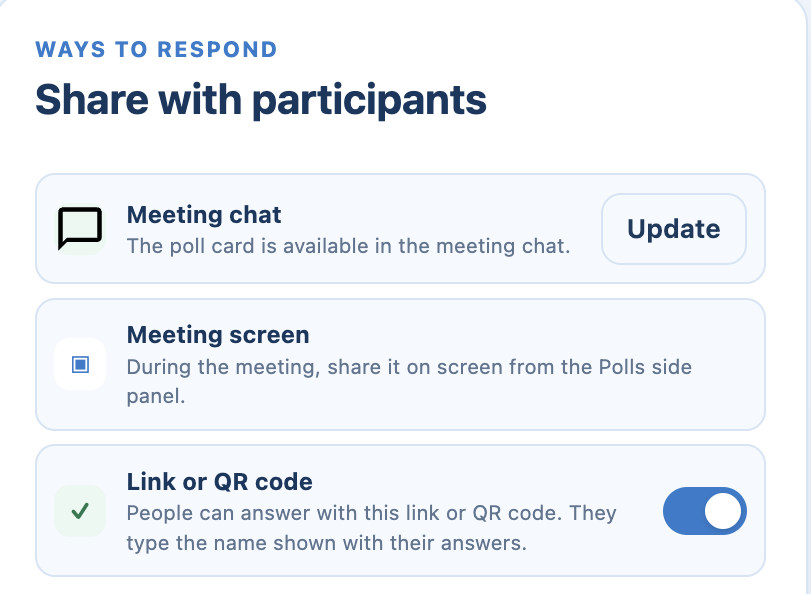
In the sharing card on the Run tab:
- Next to Meeting chat, click Post a poll card. See the meeting chat.
- Next to Meeting screen, click Share (from the side panel). See the meeting screen.
2. Is it open?
A poll that is a draft, scheduled, paused, closed or withdrawn doesn't take answers. Check its status on the Run tab and click Run poll, Resume responses or Reopen responses.
3. Are they guests or on another device?
Guests from other organizations, Teams Rooms and some mobile setups may not see app panels. The meeting chat card is the most reliable way in. For anyone who still can't answer, turn on Allow answers outside Teams and share the link or QR code.
4. Has the link expired?
Links work for 8 hours. If people see "No poll is open at this link", create a new link.
5. They answered but can't see results
That's your When participants see results setting. See who sees names and results.
6. "Waiting for a poll"
People who open the app see this until a poll is running. Once you run one, it appears for them.
Still stuck? Send us a message and tell us what participants see. A screenshot helps.