
How to share a poll in the Teams meeting chat
Don't have the app yet? Add 123 Polls & Surveys to Microsoft Teams. Already have it? Open it in Teams.
To share a poll in the meeting chat, run it in 123 Polls & Surveys and click Post a poll card next to Meeting chat. A card appears in the chat, and anyone in the meeting can answer from it, during the meeting or after.
Post the card
- Run your poll from the side panel or meeting tab.
- In the sharing card, next to Meeting chat, click Post a poll card.
- The card appears in the meeting chat.
What people see on the card
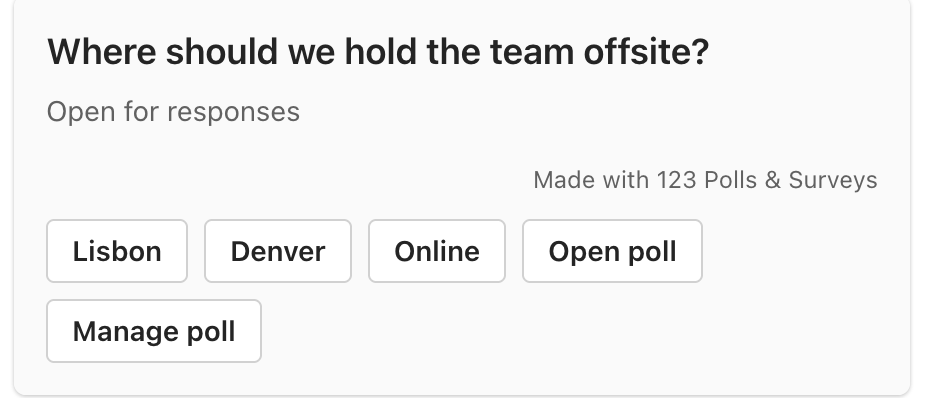
- Simple polls can be answered right on the card.
- Open poll opens the full poll in Teams. Surveys, rankings, written answers and questions with images always open this way.
- Manage poll opens the controls, for you and anyone you've given control. Others see "You don't have permission to manage this poll" with the poll below it.
The card keeps up
When you close the poll, the card changes to Closed. If you withdraw it, the card says it was withdrawn by the presenter. You don't need to post a new one.
Meeting chat or meeting screen?
Use both. The meeting screen gets everyone's attention during the meeting. The chat card is easy to find later, and it's the most reliable way in for guests. See showing a poll on the meeting screen.
Still stuck? Send us a message and our team will help.