
How to see who voted in a Microsoft Teams poll
Don't have the app yet? Add 123 Polls & Surveys to Microsoft Teams. Already have it? Open it in Teams.
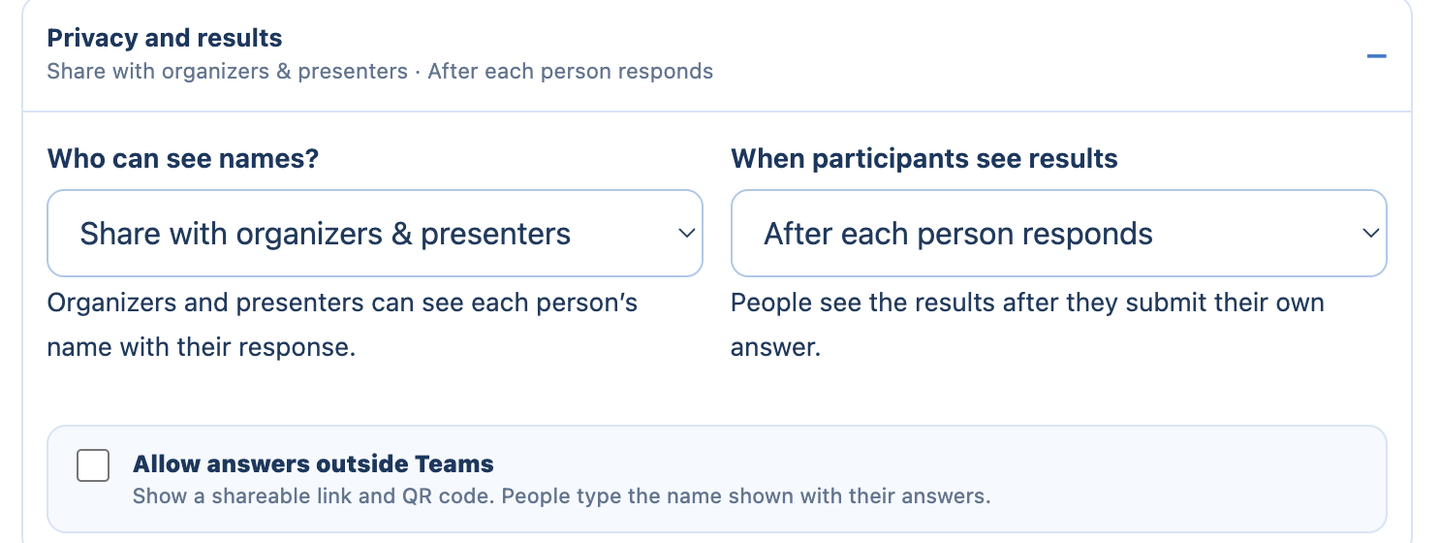
In 123 Polls & Surveys you can see who voted if the poll's Who can see names? setting allows it. Choose it before you run the poll: the setting decides whether names are saved at all.
Who can see names?
| Setting | Who sees each person's name with their answer |
|---|---|
| Anonymous | Nobody. Names aren't saved with answers |
| Share with organizers & presenters (default) | Meeting organizers, co-organizers and presenters, and anyone you've given access to the results |
| Share with participants | Everyone in the meeting, through View participant responses under the results |
Names come from Teams. Email addresses are never shown or included in downloads.
Where to see the names
- Open the poll's Results tab in the meeting, or Poll history at blueskyapps.org/polls.
- Look at the individual answers, or click Download Excel. The Responses sheet lists each person and their answers.
People who answered with the link outside Teams typed their own name, and it's marked as entered outside Teams.
When do participants see results?
A separate setting, When participants see results:
- Live to everyone: results update as people answer.
- After each person responds: people see results once they've answered.
- Reveal manually: hidden until you click Reveal results.
- After responses close: shown when the poll closes.
- Presenters only: participants never see results.
Hidden results are held back by the server, not just covered up on screen.
Good to know
Teams decides who is a presenter. In many meetings everyone is a presenter by default, which means everyone can see names on a Share with organizers & presenters poll. Change who can present in the meeting's options if that matters.
Still stuck? Send us a message and our team will help.