
How to show a poll on the Teams meeting screen
Don't have the app yet? Add 123 Polls & Surveys to Microsoft Teams. Already have it? Open it in Teams.
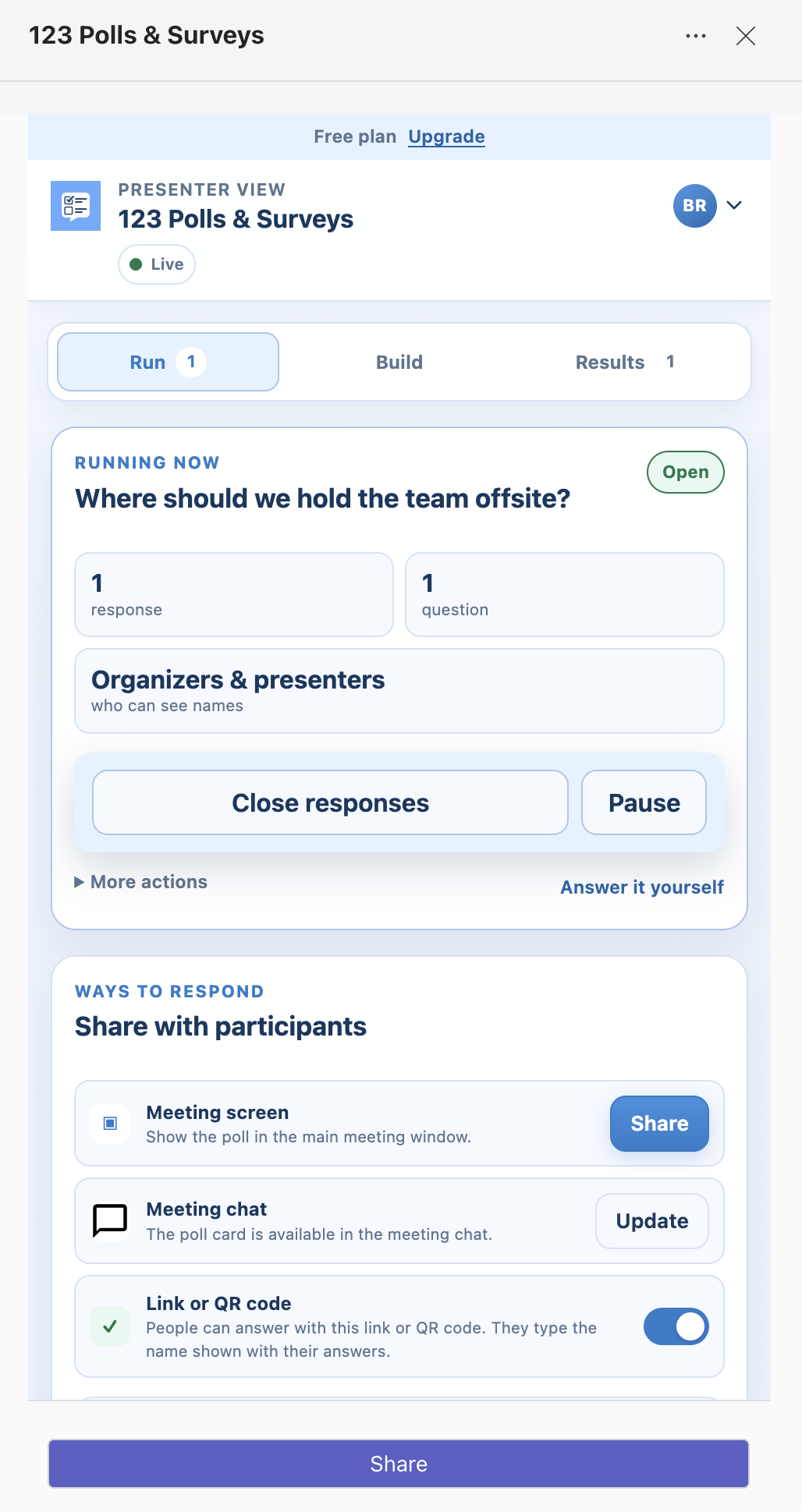
To show a poll to everyone in a Teams meeting, run it from the 123 Polls & Surveys side panel and click Share next to Meeting screen. The poll fills the main meeting window, and people can answer it right there.
Share to the meeting screen
- During the meeting, open 123 Polls & Surveys in the side panel (click Apps in the meeting toolbar if it's closed).
- Run your poll.
- In the sharing card, click Share next to Meeting screen.
Teams only allows sharing to the meeting screen from the side panel. If you're in the meeting tab or your Poll library, the app reminds you to switch to the side panel.
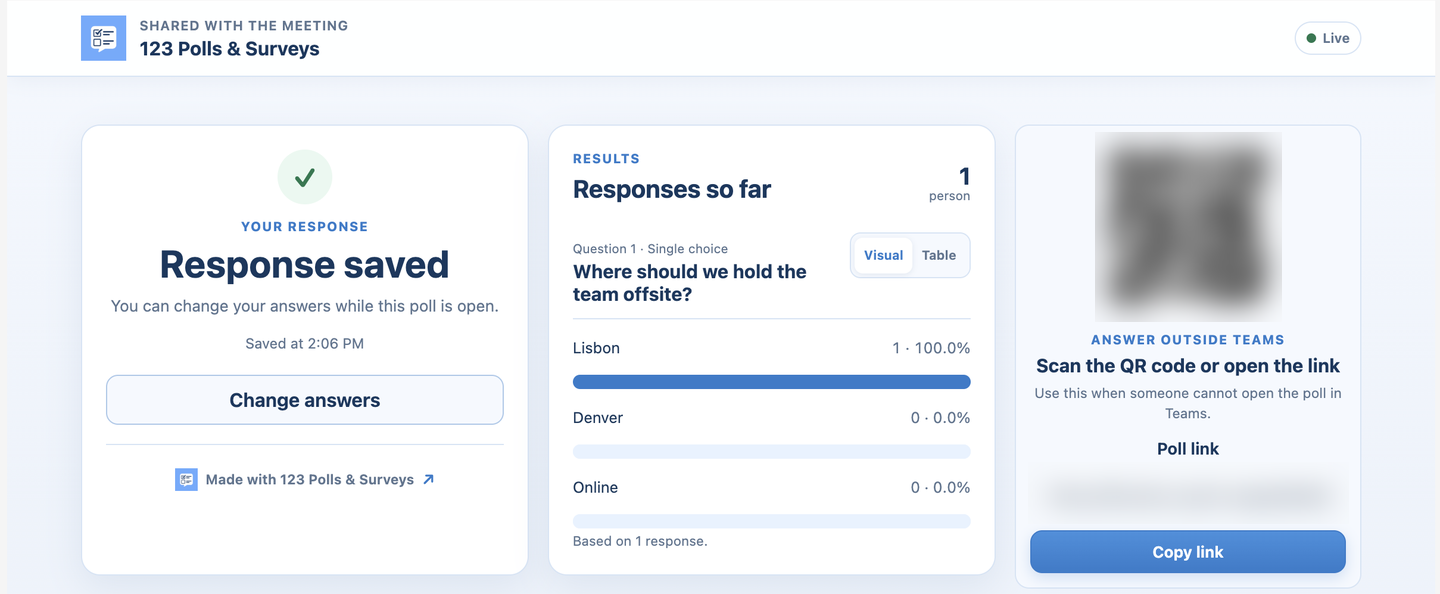
What people see
- The question and the answer choices. People signed in to Teams can answer on the meeting screen.
- Results, when your When participants see results setting allows.
- The link and QR code, if you turned on Allow answers outside Teams. That helps people in a meeting room or on another device. See answering outside Teams.
- On the free plan, a small "Made with 123 Polls & Surveys" note.
To stop sharing, use Teams' own Stop sharing at the top of the meeting.
Still stuck? Send us a message and our team will help.