
How to create a poll in a Microsoft Teams meeting
Don't have the app yet? Add 123 Polls & Surveys to Microsoft Teams. It's free to start. Already have it? Open it in Teams.
To create a poll in a Teams meeting, add a poll app to the meeting, type your question and answers, and run it. With 123 Polls & Surveys that takes about a minute, and everyone in the meeting answers right inside Teams.
Create and run your first poll
- In a scheduled Teams meeting, click Apps, choose 123 Polls & Surveys and click Save. (First time? Install the app.)
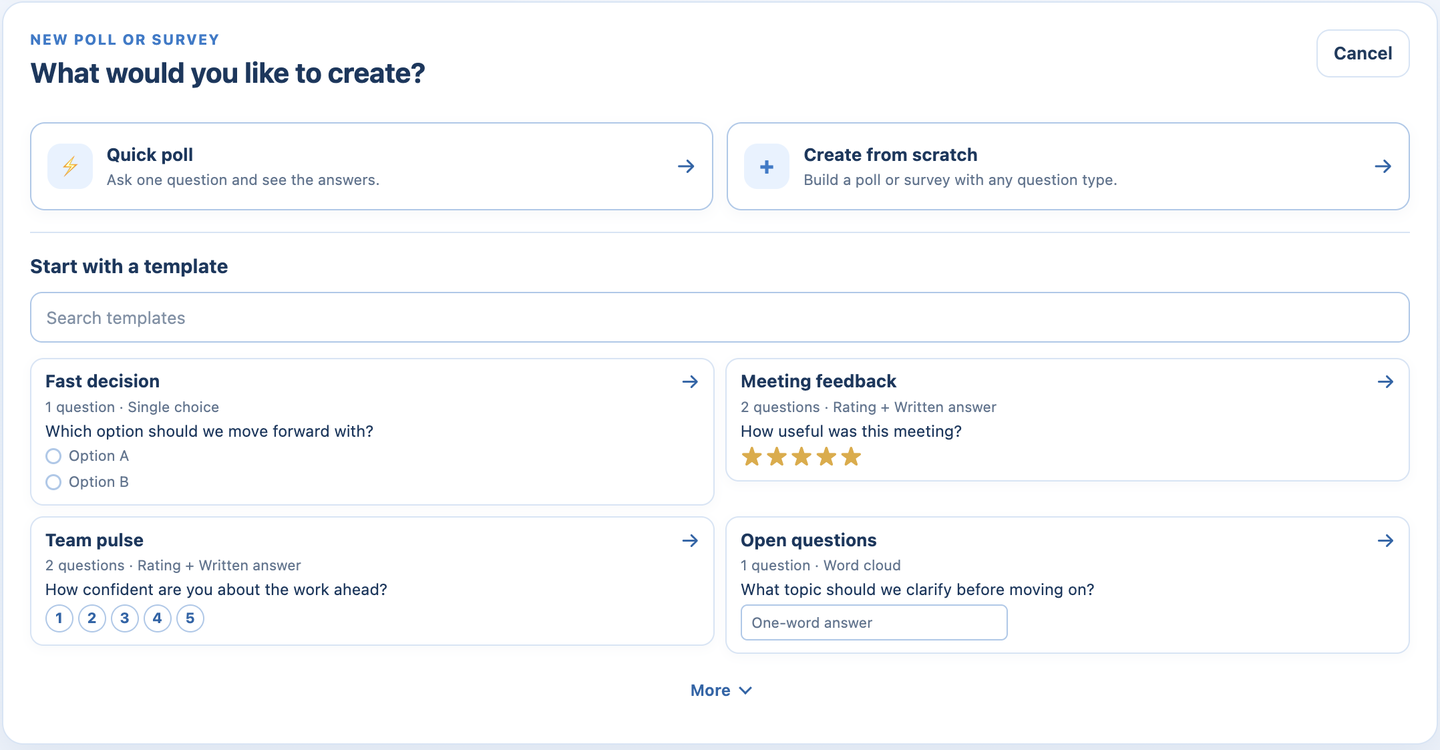
- On New poll or survey, click Quick poll.
- Type your question, then the answers. Click Add option for more.
- Optional: open Privacy and results to choose who sees names and when people see the results. By default, organizers and presenters can see names.
- Click Run in this meeting.
- Share it. In the side panel, click Share next to Meeting screen to put it in front of everyone, or post it to the Meeting chat. More on sharing.
Answers show up as they arrive. When you've heard enough, click Close responses. The final results stay on screen, and you can Reopen responses if someone missed it.
Want more than one question?
Click Create from scratch instead of Quick poll to build a survey or quiz, or pick a template such as Meeting feedback, Team retrospective or Icebreaker. See How to create a survey in a Microsoft Teams meeting.
Who can create polls in a meeting?
The meeting organizer, and the organizer or presenter who first opens 123 Polls & Surveys in the meeting. That person owns the meeting's polls, and the meeting counts toward their plan. Other presenters can edit drafts and can be given control: see How to let a co-organizer or presenter run your polls.
Still stuck? Send us a message and our team will help.