
How to let a co-organizer or presenter run your polls
Don't have the app yet? Add 123 Polls & Surveys to Microsoft Teams. Already have it? Open it in Teams.
You can let another organizer or presenter help with your polls in two ways: add them as a collaborator on a poll, or pass them the controls for the meeting. Either way, they need to be an organizer or presenter in the meeting and have opened 123 Polls & Surveys there once.
What presenters can do already
Anyone Teams lists as a presenter in the meeting can open Build and edit polls that haven't started. They can't run polls, see the Results tab or download results until you give them access.
Add a collaborator
Good for preparing polls together, or for someone who will look after the results.
- Ask the person to join the meeting as an organizer or presenter and open 123 Polls & Surveys.
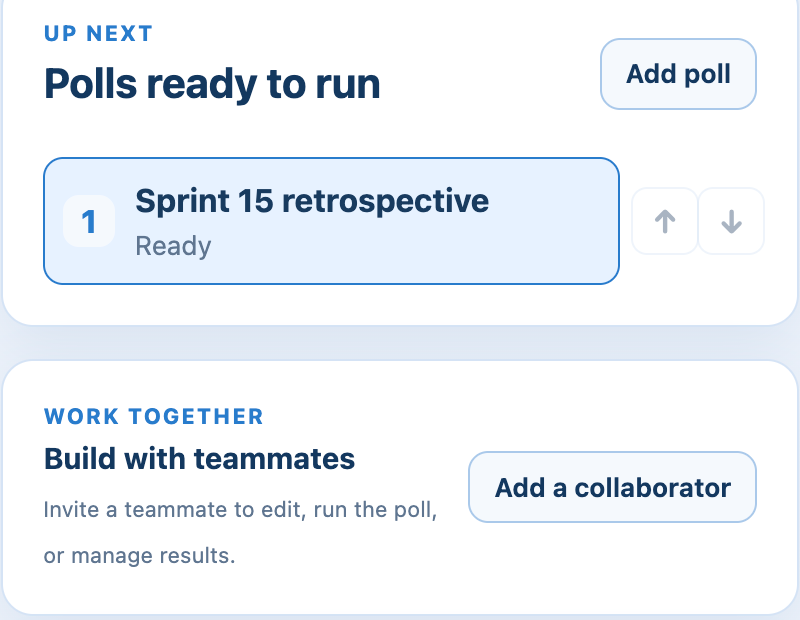
- Before the poll starts, select it under Polls ready to run (or open the draft) and click Add a collaborator.
- Under Person, choose them. Under Access, pick Edit this draft, Run the poll, or Manage results and review written responses.
- Refresh the app if they don't appear yet.
They'll find the poll in their Poll library under Shared with me.
Pass the controls
Good when someone else is running the meeting.
- Under Pass the controls, choose another presenter.
- Confirm. They can now run and manage this meeting's polls.
Only the organizer can delete
Deleting a poll and its responses is always the meeting organizer's call. See deleting a poll.
Still stuck? Send us a message and our team will help.