
How to create a survey in a Microsoft Teams meeting
Don't have the app yet? Add 123 Polls & Surveys to Microsoft Teams. Already have it? Open it in Teams.
To run a survey in a Teams meeting, build one with several questions in 123 Polls & Surveys and click Run survey. Participants answer one question after another inside Teams, check their answers, and submit once.
Build the survey
- Open 123 Polls & Surveys in your meeting and click Create from scratch. (Or start from a template like Meeting feedback or Team retrospective.)
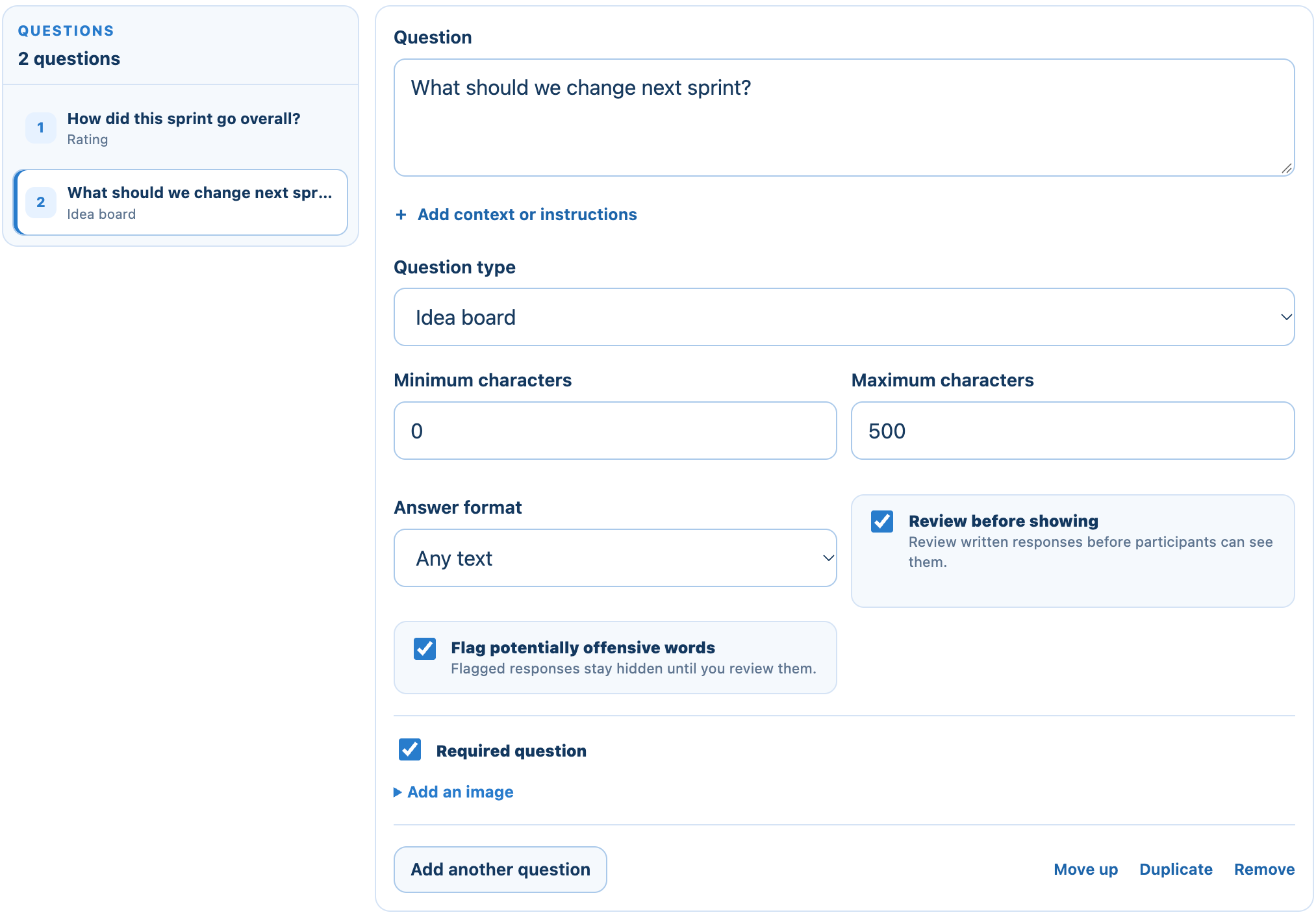
- Type the first question. Choose its Question type below it. See question types.
- Click Add another question at the end of the question, choose a type, and type the next one.
- Use Move up, Move down, Duplicate and Remove to arrange the questions.
- Tick Required for questions everyone must answer.
- Optional: click Add a title or description to tell people what the survey is for.
Everything saves as you type.
Settings that matter for surveys
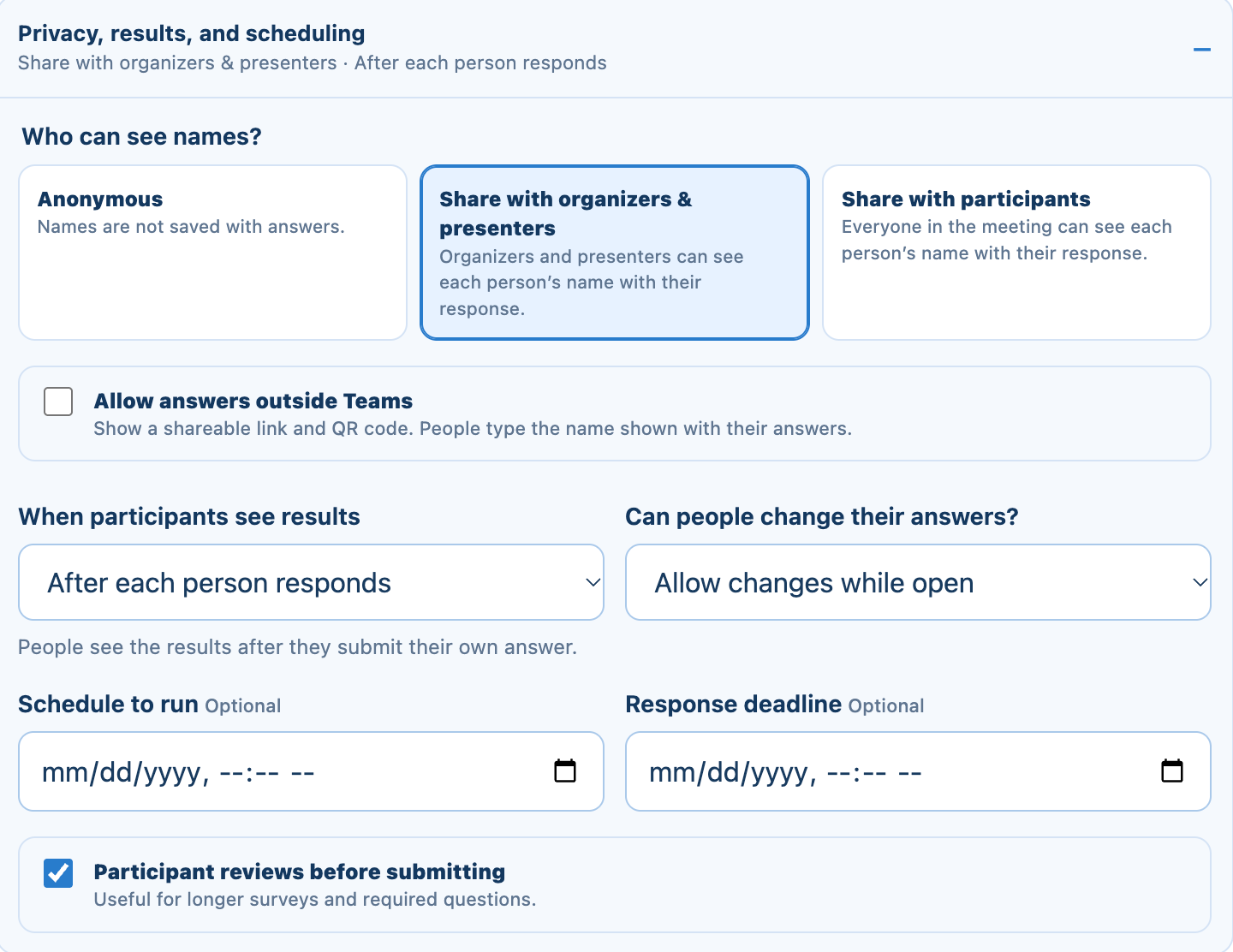
- Participant reviews before submitting shows each answer on one screen before they submit.
- Who can see names and When participants see results work the same as for one question. See who sees names and results.
- Schedule to run and Response deadline open and close the survey for you.
Preview and run
- Open Participant preview and answer it yourself. Test answers don't count.
- Click Run survey, then share it in the meeting chat or on the meeting screen.
When someone submits, they see Response saved and can Change answers while the survey is open (unless you chose Lock answers after submitting).
After the meeting
Open the Results tab, or Poll history at blueskyapps.org/polls, and download Excel, CSV or an image. See downloading results.
Still stuck? Send us a message and our team will help.