
Install Meeting Timer Classic
Meeting Timer Classic goes on your Zoom account once: open the install link, sign in to Zoom, click Allow, and your BlueSky Dashboard opens, ready to send the timer into a meeting. The people in your meetings don't install anything.
If the timer joins your meeting as its own participant, you're using Meeting Timer Classic. If it opens in Zoom's Apps panel, you're using BlueSky Timer: see Add BlueSky Timer to Zoom.
Install Meeting Timer Classic
- Open Install Meeting Timer Classic. Sign in to Zoom if you are asked to, with the Zoom account you'll host your meetings from.
- Zoom shows what the app can access. Click Allow.
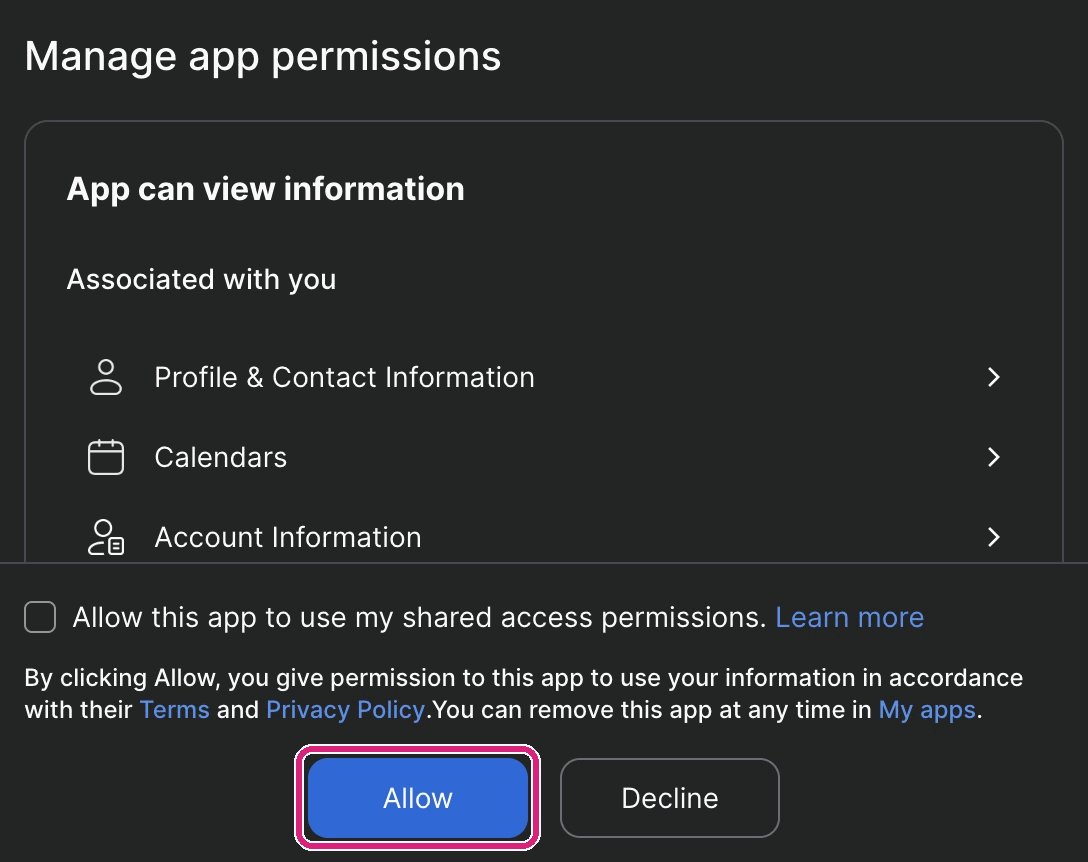 Zoom asks for your permission once, when you install.
- Your BlueSky Dashboard opens, with a Meeting Timer Classic section on it.
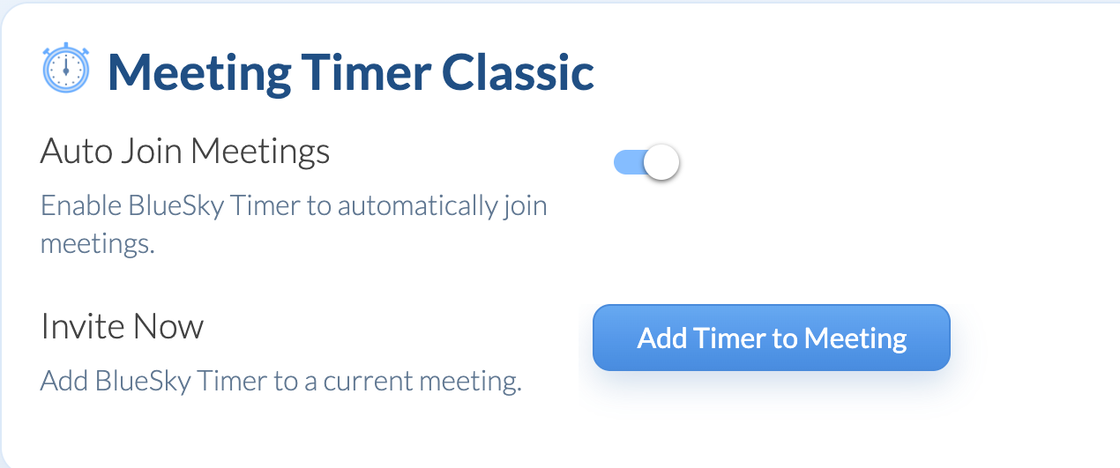 Everything you need to send the timer into a meeting is in this section.
 Zoom asks for your permission once, when you install.
 Everything you need to send the timer into a meeting is in this section.
Get the timer into a meeting
There are two ways, both in the Meeting Timer Classic section of your Dashboard:
- Switch on Auto Join Meetings and the timer joins the meetings you host by itself. See Auto Join: turn it on or off, and stop the timer joining every meeting.
- Click Add Timer to Meeting and paste your meeting's join link. See Invite Meeting Timer Classic to a meeting.
The timer joins on behalf of the Zoom account that installed it, so join your meetings signed in to that account.
If your organization has to approve apps
Some organizations let only a Zoom admin add apps. If you can't install Meeting Timer Classic yourself, Get a BlueSky app approved by your Zoom or Teams admin has what to send them.
Good to know
- It's free for 2 meetings a month. See Meeting Timer Classic limits: monthly meetings and the time limit.
- If the invite page says "To invite BlueSky Timer from this page, first install the Meeting Timer Classic app.", click Install Meeting Timer and follow the steps above. If you've just installed it, click Already installed? Refresh.
- To take it off your Zoom account, see Uninstall Meeting Timer Classic.
Thinking about the newer Timer?
BlueSky Timer opens in Zoom's Apps panel during your meeting, so nothing has to join or be let in. Classic is the one that shows the timer as its own tile, joins by itself and can be run from any browser. Every plan includes both. BlueSky Timer or Meeting Timer Classic: which should I use in Zoom? compares them.
Still stuck? Send us a message and our team will help.