
How to create a poll in a Zoom meeting
Don't have the app yet? Add Polls, Surveys & Forms to Zoom. It's free to start. Already have it? Open it in Zoom.
Your first poll takes about a minute. You type a question and its answers, open it, and invite the meeting. Answers show up as people respond, and nobody answering needs an account.
Create and open your first poll
-
In your Zoom meeting, click Apps (or More > Apps) and choose Polls, Surveys & Forms. (First time? Add the app to Zoom.)
-
On the Create tab, click Quick poll.
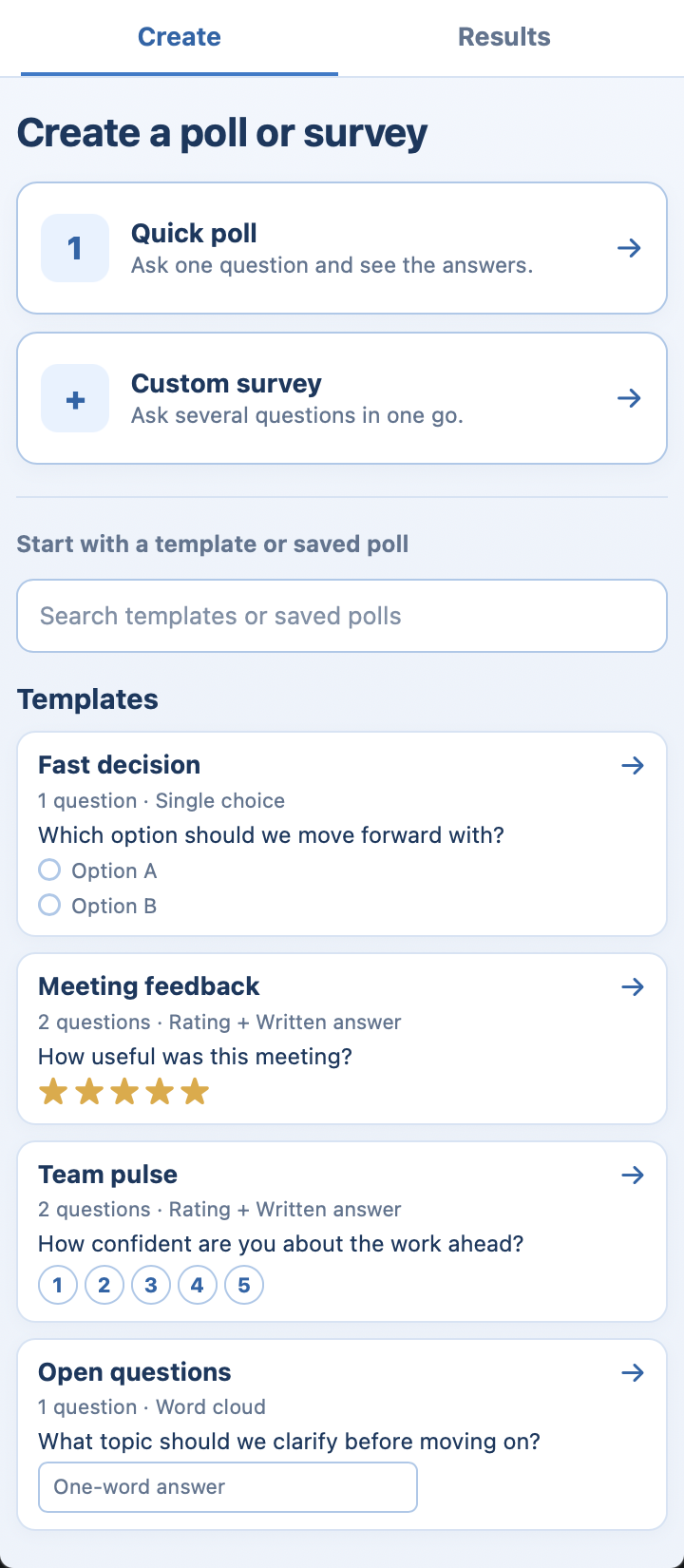 The Create tab, with Quick poll ringed.
-
Type your Question, then the answers under Answer options. Click Add option for more.
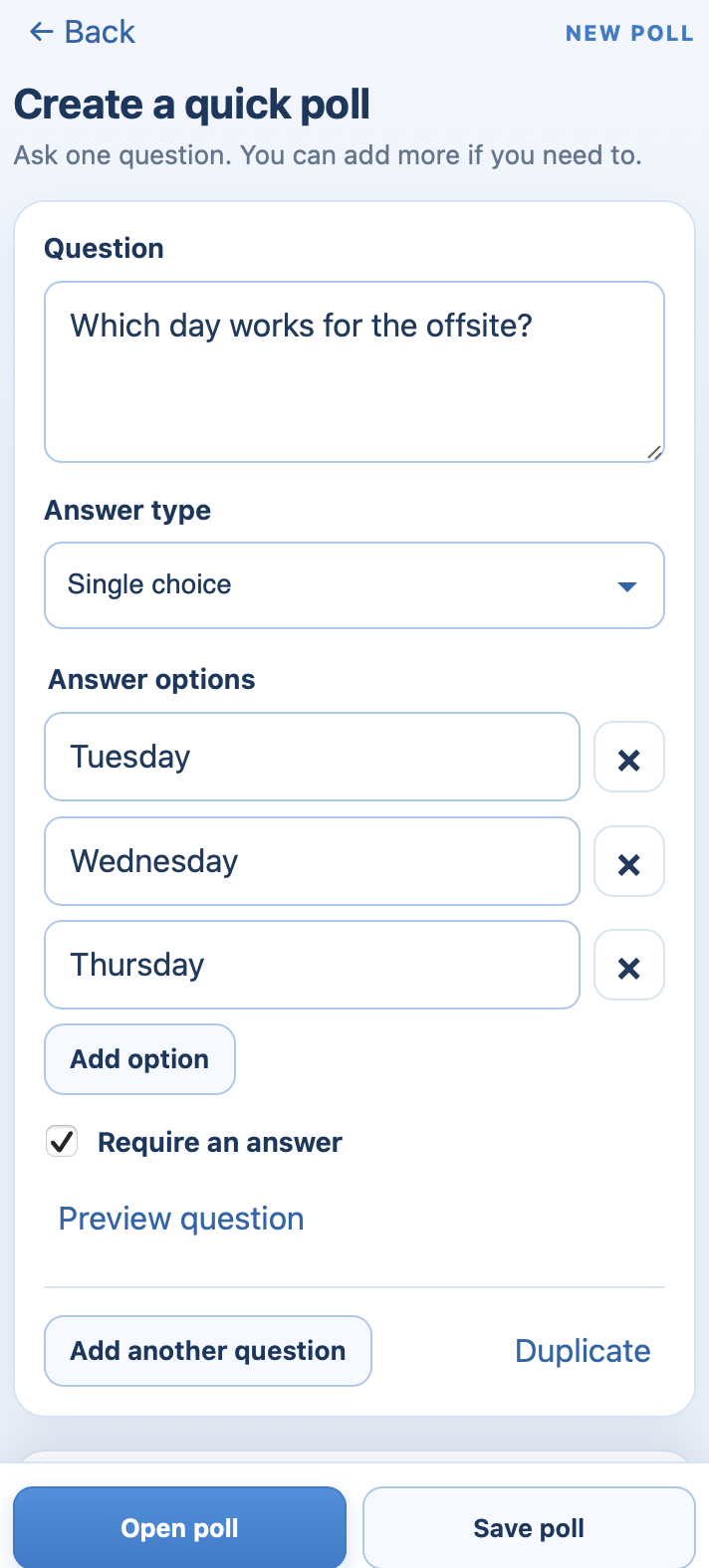 A quick poll asking which day works for the offsite, with three answer options typed in.
-
Optional: open Response settings to choose who can see names with answers and when people see results. A new poll collects no names, and people see results once they've answered (After each person answers). You and the meeting's hosts always see them.
-
Click Open poll.
-
Under Share this poll, click Invite in Zoom. People using the Zoom desktop or mobile app get an invitation to open the poll. For anyone else, click Copy voting link and paste it in the meeting chat.
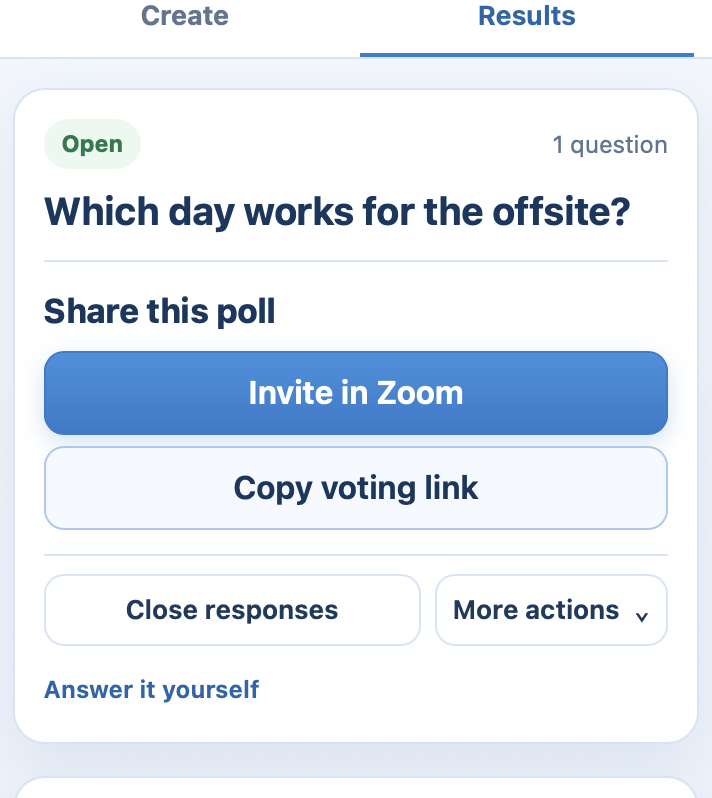 The open poll, with Invite in Zoom and Copy voting link side by side under Share this poll.
 The Create tab, with Quick poll ringed.
 A quick poll asking which day works for the offsite, with three answer options typed in.
 The open poll, with Invite in Zoom and Copy voting link side by side under Share this poll.
Answers appear as they arrive. When you've heard enough, click Close responses.
 Everyone's answers filling in live on the open poll, with Close responses below.
Want something other than multiple choice?
Change Answer type to ask for a rating, a ranking, a word cloud, a quiz answer and more. See the question types. For several questions at once, choose Custom survey or a template: see how to create a survey.
Who can create a poll?
Anyone in the meeting with the app can open the meeting's first poll. After that, the next one is opened by the host, a co-host, or the person who created the last poll. More in who can manage a poll.
Still stuck? Send us a message and our team will help.