
How to create a survey in a Zoom meeting
Don't have the app yet? Add Polls, Surveys & Forms to Zoom. It's free to start. Already have it? Open it in Zoom.
A survey is several questions people answer in one go, which is what you want for meeting feedback, a retrospective or a training check. You can build one from scratch in a few minutes or start from a template and edit it.
Build a survey
-
In the app, open the Create tab and click Custom survey.
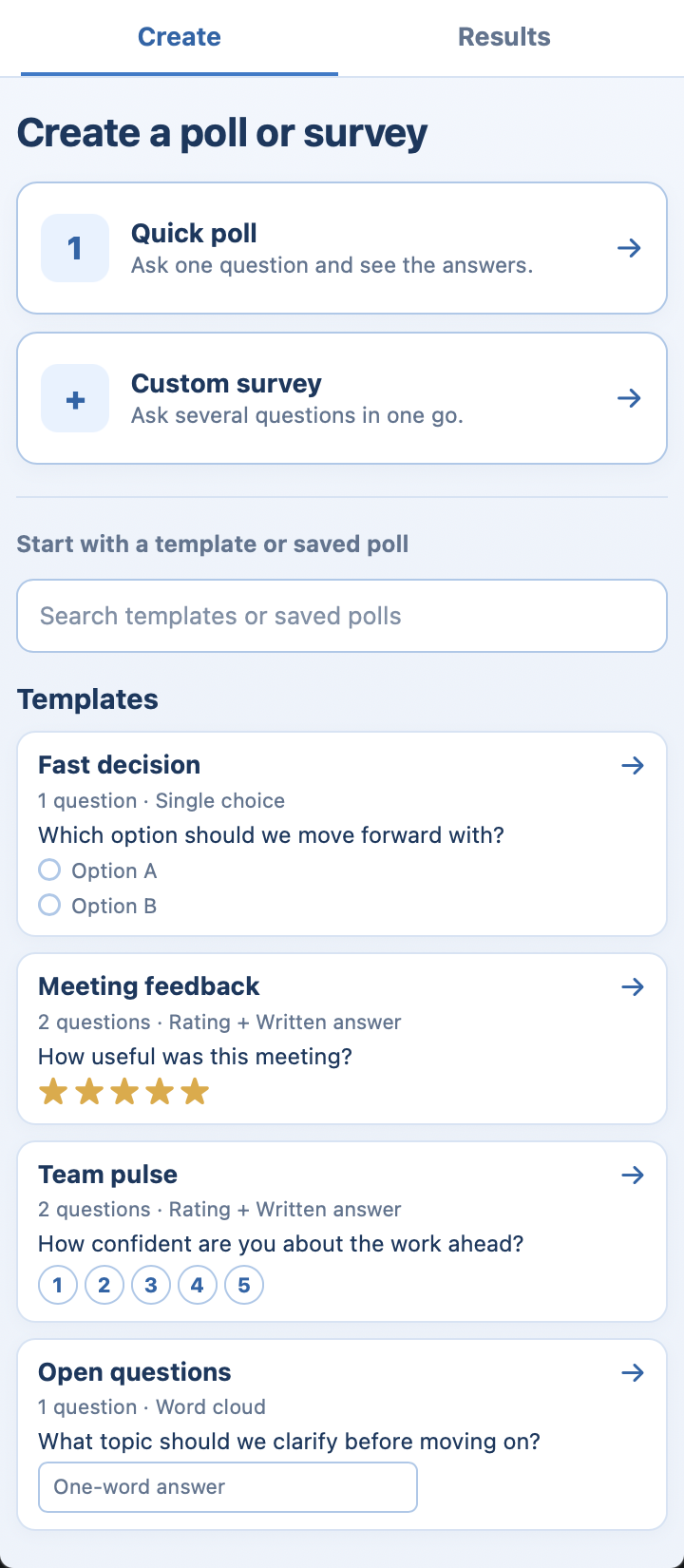 The Create tab, with Custom survey ringed.
-
Give it a Survey title if you like. Without one, your first question names it.
-
Type the first Question, choose its Answer type, and fill in the answers.
-
Click Add another question and repeat. Use Previous and Next to move between questions. A survey can hold up to 50.
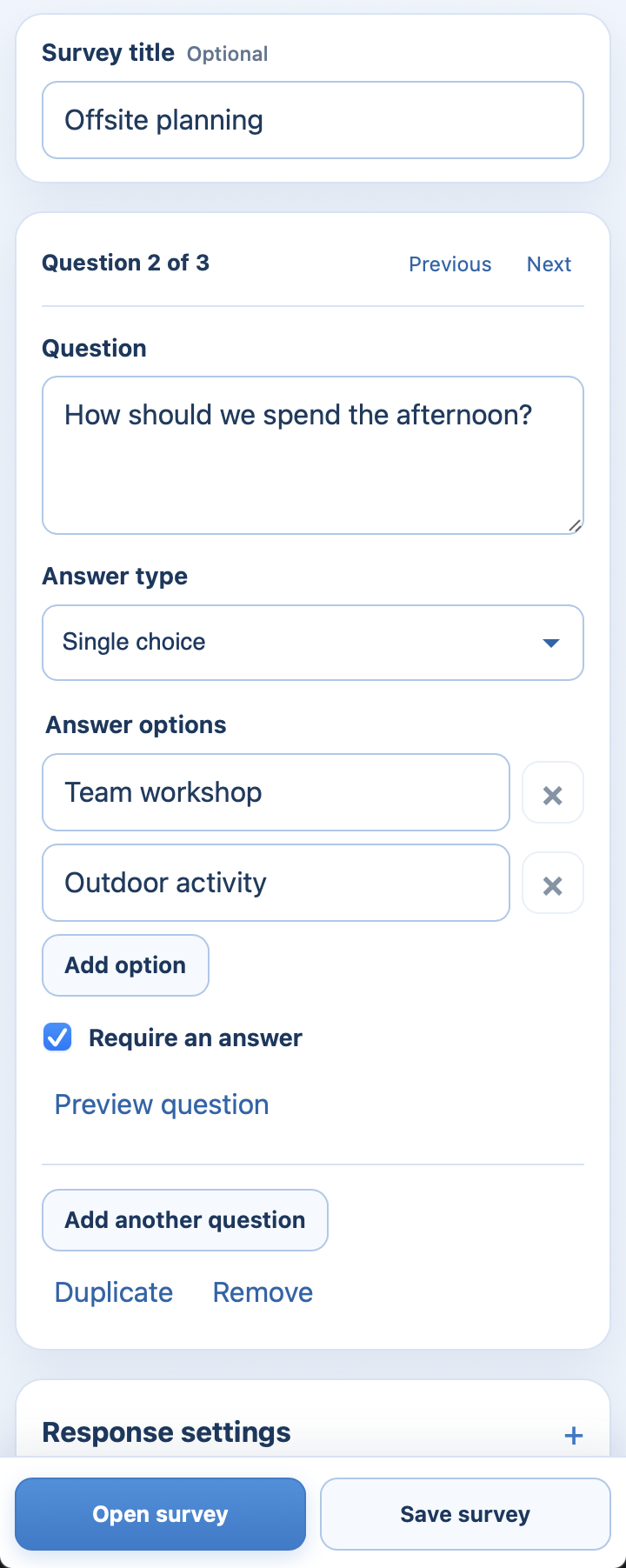 The survey builder on question 2 of 3, with Previous, Next and Add another question.
-
Tick Require an answer on questions people shouldn't skip.
-
Open Response settings to choose who sees names, when people see results, and whether they can change an answer.
-
Click Open survey to run it now, or Save survey to keep it for later.
 The Create tab, with Custom survey ringed.
 The survey builder on question 2 of 3, with Previous, Next and Add another question.
Start from a template
Under Start with a template or saved poll, pick one such as Meeting feedback, Team retrospective, Icebreaker or Fast decision. It opens in the editor so you can change any question before you open it. Templates collect no names unless you change that in Response settings.
 The Templates list, with ready-made surveys such as Meeting feedback and Team retrospective.
Good to know
-
Only one poll or survey can be open in a meeting at a time. Close the current one before opening the next.
-
Once it's open, invite people the same way as a poll: see how to invite people to answer.
-
Want to keep a survey for next week's meeting? See how to save and reuse a poll.
Still stuck? Send us a message and our team will help.