
How to download poll results to Excel, CSV or an image
Don't have the app yet? Add 123 Polls & Surveys to Microsoft Teams. Already have it? Open it in Teams.
You can download any poll's results from the Results tab in 123 Polls & Surveys, or from Poll history at blueskyapps.org/polls. There are three downloads: Excel, CSV and an image.
Download the results
- Open the poll on the Results tab in Teams, or find it in Poll history.
- Click Download Excel, Download CSV or Download image.
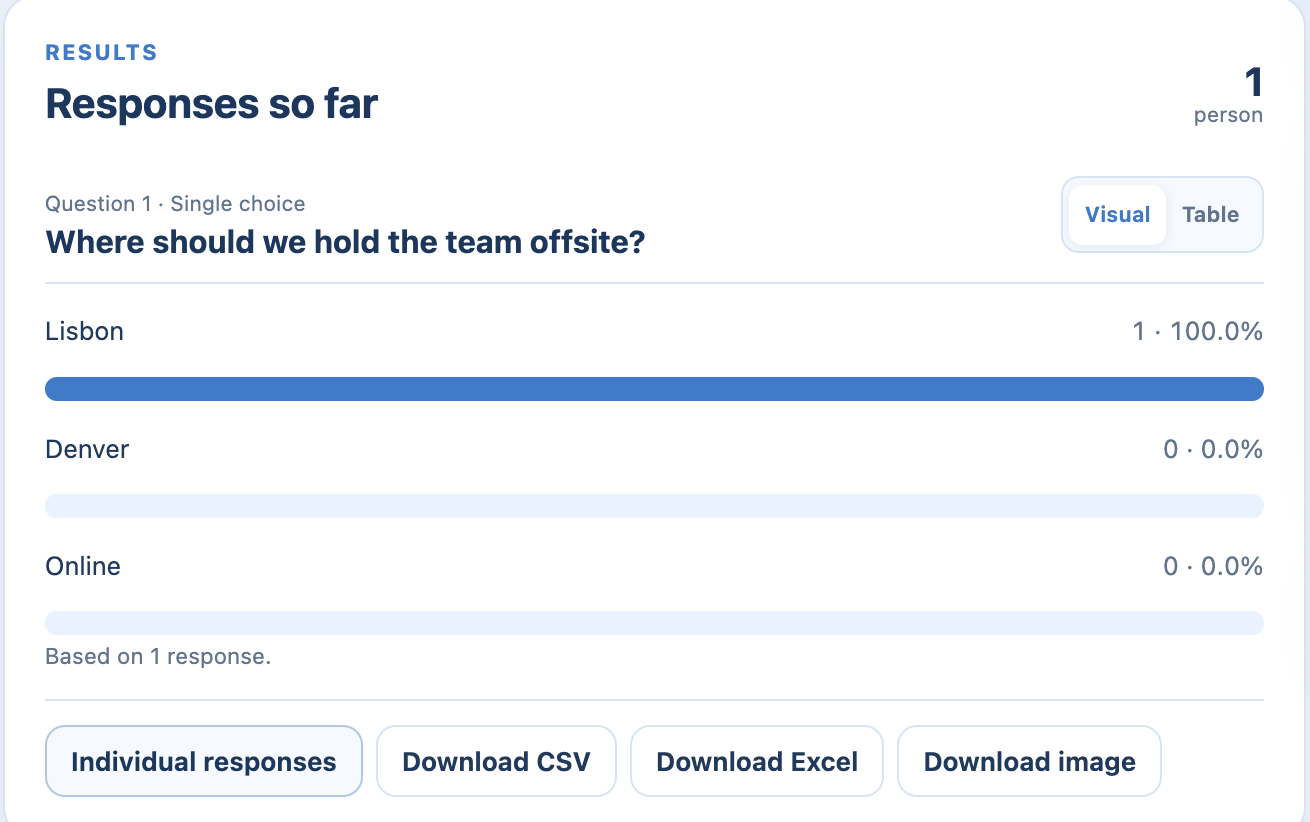
What's in each one
| Download | Contains | Use it for |
|---|---|---|
| Excel | A Summary sheet, a Questions sheet and a Responses sheet with every answer and the time zone | Reports and analysis |
| CSV | Every answer, one row each | Importing into other tools |
| Image | A 1600 x 900 picture of one question's results: chart, word cloud, ranking or score | Slides and follow-up emails |
Times are shown in your time zone, and the file says which one.
Names in downloads
Downloads follow the poll's Who can see names? setting. Anonymous polls never include names. Other polls include names only for people allowed to see them, and email addresses are never included. See who sees names.
Who can download
The person who created the poll, the meeting organizer, and anyone given control or access to manage results. Participants can't download results.
Keep a copy
Your results stay in Poll history until you delete the poll, so you can download them again any time.
Still stuck? Send us a message and our team will help.