
Stopwatch and clock in Google Meet
BlueSky Timer becomes a stopwatch when you switch Count Direction to Count Up, and a clock showing the time of day when you choose Clock. Either one goes on Google Meet's main stage when you click Share Timer Display.
Google's Set a timer page describes a countdown and names no stopwatch or clock.
Before you start
Add BlueSky Timer to Google Meet once, then join your meeting in Google Meet on a computer.
Count up like a stopwatch
- At the bottom right of the meeting, click Meeting tools (the grid icon), then the Add-ons tab.
- Click Timer for Google Meet, Google's name for BlueSky Timer, in the list. If it isn't there, add BlueSky Timer to Google Meet first. The first time, click Connect and choose your Google account, then step through the short tour and click Let's Go!
- At the top left, keep Simple Timer selected, and under Count Direction click Count Up.
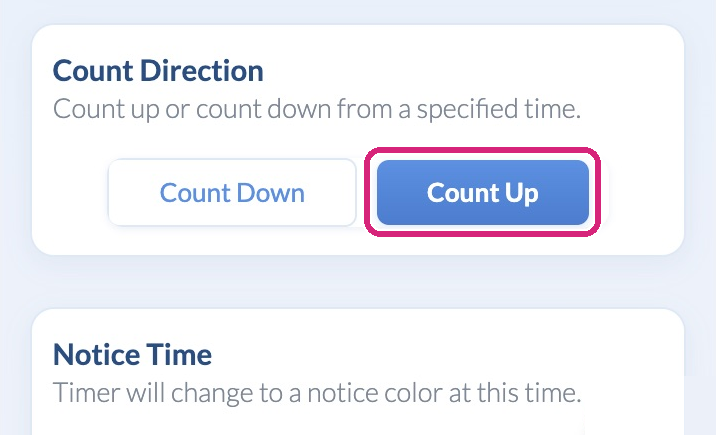 Count Up turns the Simple Timer into a stopwatch.
- Set Notice Time, Warning Time and Alert Time. The stopwatch changes color as it passes each one, so a speaker can see how long they've been going.
- Click Share Timer Display, then Continue when Meet asks you to confirm.
- Click Start Timer. Pause Timer holds the count, and Stop Timer puts it back to zero.
 Count Up turns the Simple Timer into a stopwatch.
An example: speech practice
Each student speaks for about three minutes. Set Notice Time to 2 minutes, Warning Time to 3 and Alert Time to 4. The class watches the stopwatch change color at two minutes, again at three, and once more if a speaker runs a minute over. Click Stop Timer between speakers to start the next one from zero.
Show the time of day
- Open the menu at the top left of the Timer and choose Clock.
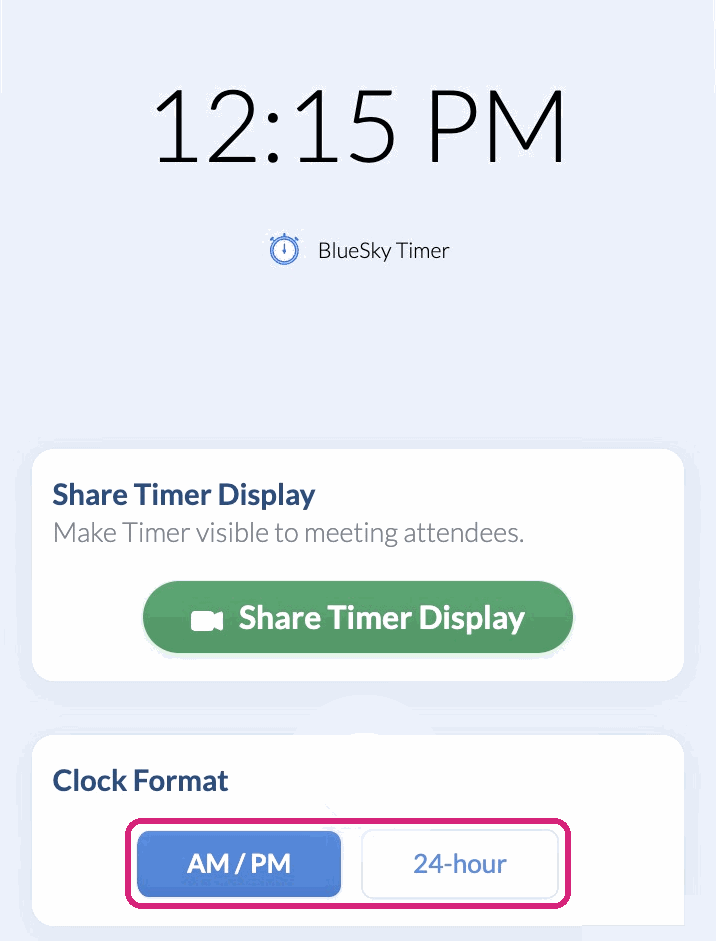 The Clock has two settings: the format and whether to show seconds.
- Under Clock Format, choose AM / PM or 24-hour. Turn Display Seconds on or off.
- Click Share Timer Display, then Continue when Meet asks you to confirm.
 The Clock has two settings: the format and whether to show seconds.
To take the stopwatch or clock off the main stage, use Meet's own controls: click End activity at the foot of the side panel. The Timer has no button for it.
What people in your meeting see
Meet shows the stopwatch or clock on its main stage. How people join an add-on activity is on Google's add-ons page.
 The stopwatch fills Meet's main stage and changes color at each time you set.
Want a countdown or an agenda instead?
For a countdown, see How to show a timer on screen in Google Meet. For a list of items, each with its own time, see Agenda timer for a Google Meet meeting or class.
Still stuck? Send us a message and our team will help.