
Agenda timer for a Google Meet meeting or class
An agenda timer keeps a class or a meeting moving: everyone sees which item you're on and how long it has left, and BlueSky Timer moves to the next item by itself when the time runs out. Switch to Agenda Timer, add your items and their times, share it and click Start.
Google's Set a timer page describes a single countdown and names no agenda timer.
Before you start
- Add BlueSky Timer to Google Meet once, then join your meeting in Google Meet on a computer.
- An agenda holds up to 10 items.
Set up your agenda
- At the bottom right of the meeting, click Meeting tools (the grid icon), then the Add-ons tab.
- Click Timer for Google Meet, Google's name for BlueSky Timer, in the list. If it isn't there, add BlueSky Timer to Google Meet first. The first time, click Connect and choose your Google account, then step through the short tour and click Let's Go!
- Open the menu at the top left of the Timer and choose Agenda Timer.
- Type a heading in Agenda Title, such as the name of the class or meeting.
- Under Agenda Schedule, give each row a name in Agenda Item and a length in Hours, Minutes and Seconds. Click + Add Agenda Item for another row, drag a row to change the order, and click the trash can on a row to remove it. After 10 rows the Timer says "Maximum agenda items reached!"
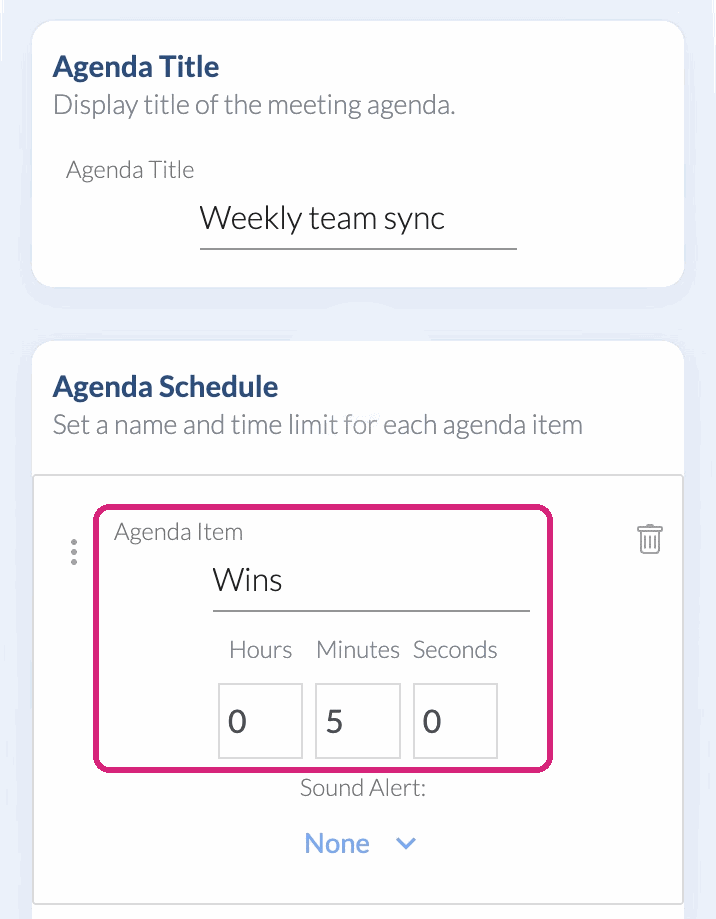 Each row is one agenda item with its own length.
- Under Layout, choose List to show every item with its time remaining, or Feature to show the current item large with "Up Next" in the corner.
 Each row is one agenda item with its own length.
Run it during the meeting
- Click Share Timer Display. Meet asks you to confirm that others who have the add-on can see it on their main screen: click Continue.
- Click Start as you begin the first item. When an item's time runs out, the next one starts by itself.
- If you finish an item early, click Next. The time you didn't use is dropped, and the later items keep their own lengths. Next only moves forward.
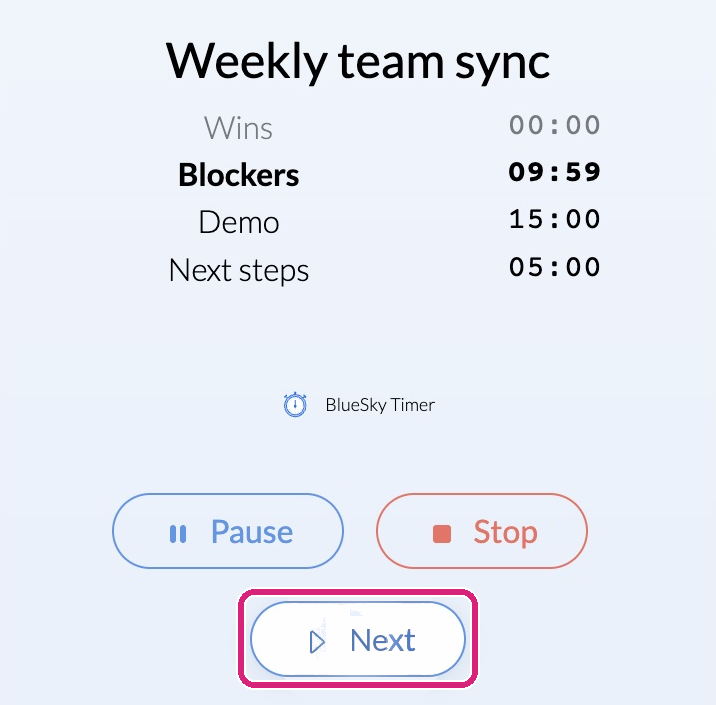 Next ends the current item and starts the one after it.
- Pause holds the clock, for a question or an item that needs longer. Stop ends the run and puts every item back to its full time.
 Next ends the current item and starts the one after it.
The Timer has no button to take the agenda off the main stage. Click End activity at the foot of Meet's side panel.
An example: a 45-minute lesson
Four items: a Warm-up for 5 minutes, Reading for 15, Group work for 20 and a Wrap-up for 5. You click Start as class begins, and Reading starts by itself five minutes later. The groups finish after 16 minutes, so you click Next, and the Wrap-up starts with its full 5 minutes. Class ends four minutes early.
Use the same agenda next time
Your agenda saves itself to the template named in the Template menu, so it's ready for the next class. To keep a different agenda for each class or meeting, click + New Template.
What people in your meeting see
Meet shows the agenda on its main stage, with the current item counting down. How people join an add-on activity is on Google's add-ons page.
 In the List layout, everyone sees every item and the time each has left.
Questions people ask
Can someone else run the agenda while I teach?
Yes. Anyone who opens BlueSky Timer in the same meeting gets the same agenda and the same buttons, so a co-teacher or timekeeper can click Next for you.
Still stuck? Send us a message and our team will help.