
How to save a poll and reuse it in another Zoom meeting
Don't have the app yet? Add Polls, Surveys & Forms to Zoom. It's free to start. Already have it? Open it in Zoom.
Write a poll once and it's ready for every meeting after. Saved polls live on the Create tab under Saved polls, and they belong to you, so they follow you into any Zoom meeting.
Save a poll
There are three ways:
-
While you're writing it, click Save poll (or Save survey) instead of opening it.
-
On a poll you've opened, click More actions, then Save a reusable copy.
-
For an old poll, open the Results tab, find it under Past results and click Save as reusable poll.
Saving copies the questions and settings. Responses aren't copied.
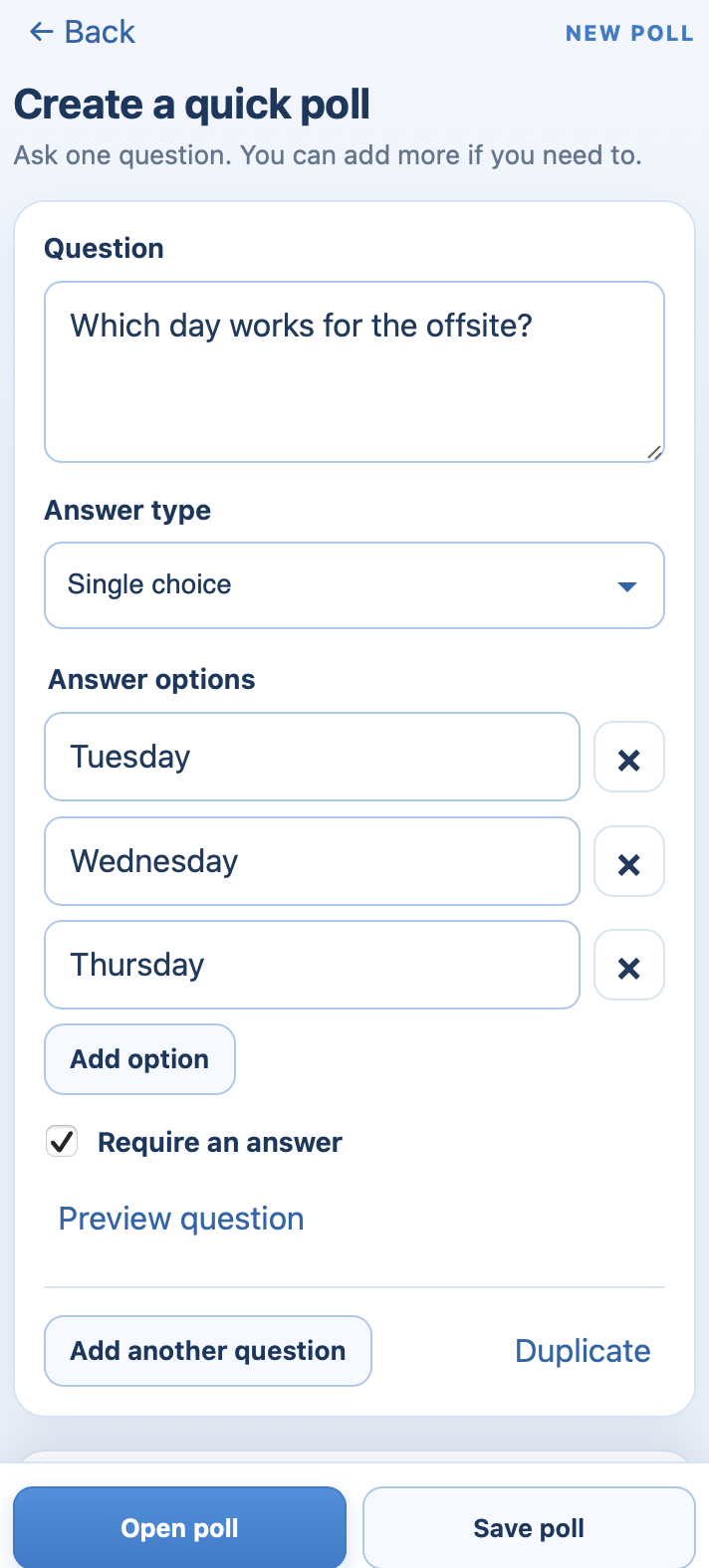 A poll being written, with Save poll beside Open poll.
Prepare before your meeting
Open Polls, Surveys & Forms in Zoom before the meeting starts, write your polls, and save each one. You don't need to be in a meeting to create and save. You do need to be in one to open a poll for answers.
Use a saved poll
-
In your meeting, open the app and go to the Create tab.
-
Under Saved polls, click Use beside the poll. The search box finds it by name if your list is long.
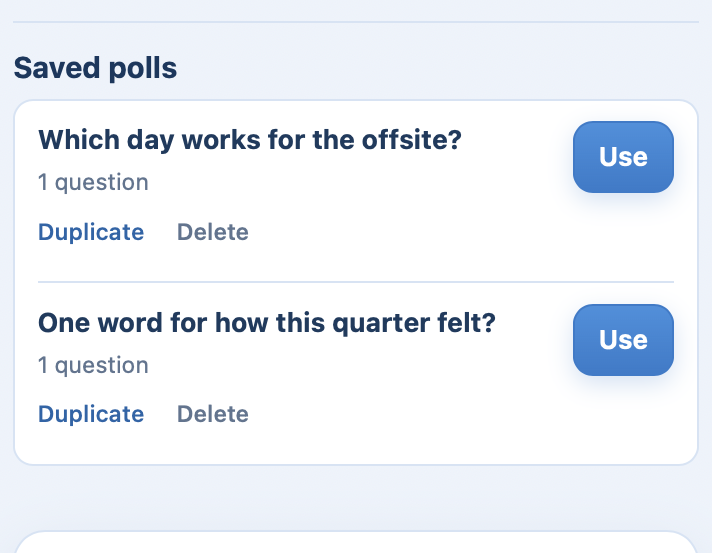 Your saved polls, with Use ringed on one of them.
-
Check the questions, change anything you like, and click Open poll.
 Your saved polls, with Use ringed on one of them.
Tidy up
Under each saved poll, Duplicate makes a copy to adapt and Delete removes it. To change a saved poll for next time, open it, edit, and click Save changes.
Start from a template
The Templates list has ready-made polls such as Fast decision, Meeting feedback, Team pulse and Icebreaker. Pick one, edit it, then open it or save your version.
Still stuck? Send us a message and our team will help.