
Add an agenda timer to a Microsoft Teams meeting (no Copilot needed)
Put your agenda on the meeting screen with a countdown for each item, and the meeting keeps its own pace. Teams' built-in timer has no agenda, and the agenda in Microsoft's Facilitator needs a Copilot license on top of Microsoft 365. 123 Timer's Agenda Timer needs neither, and it takes about five minutes to set up.
 A four-item agenda on the meeting screen, ready to start.
Set up your agenda
You can do this before everyone joins. Open the meeting from your Teams calendar, join it, and set things up while you wait.
- Open 123 Timer in your meeting. If it isn't there yet, click More in the meeting toolbar, then Get more apps and agents, search for "123 Timer", choose 123 Timer and Clock by BlueSky and click Save. The full walk-through is in How to add a timer to a Microsoft Teams meeting.
- Choose Agenda Timer from the menu at the top left of the panel.
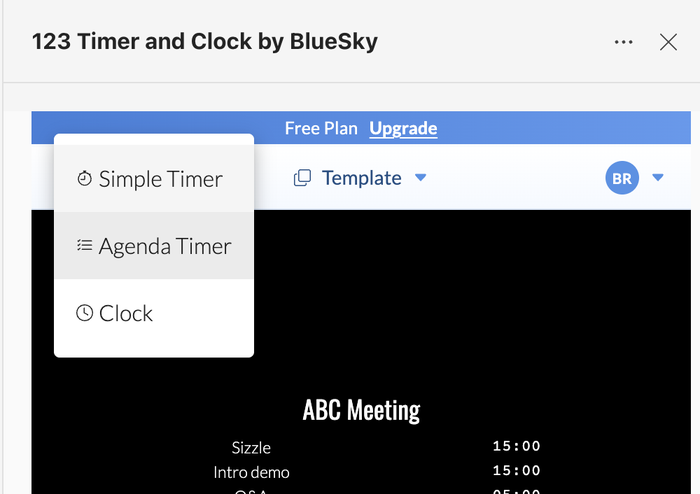 Agenda Timer sits between Simple Timer and Clock.
- Type a name for the meeting in Agenda Title, like "Weekly team meeting". It appears above the agenda on screen.
- Under Agenda Schedule, give each item a name and a time in hours, minutes and seconds. Click + Add Agenda Item for each new item, up to 10. Drag the dots on the left of an item to move it, or click the bin to remove it.
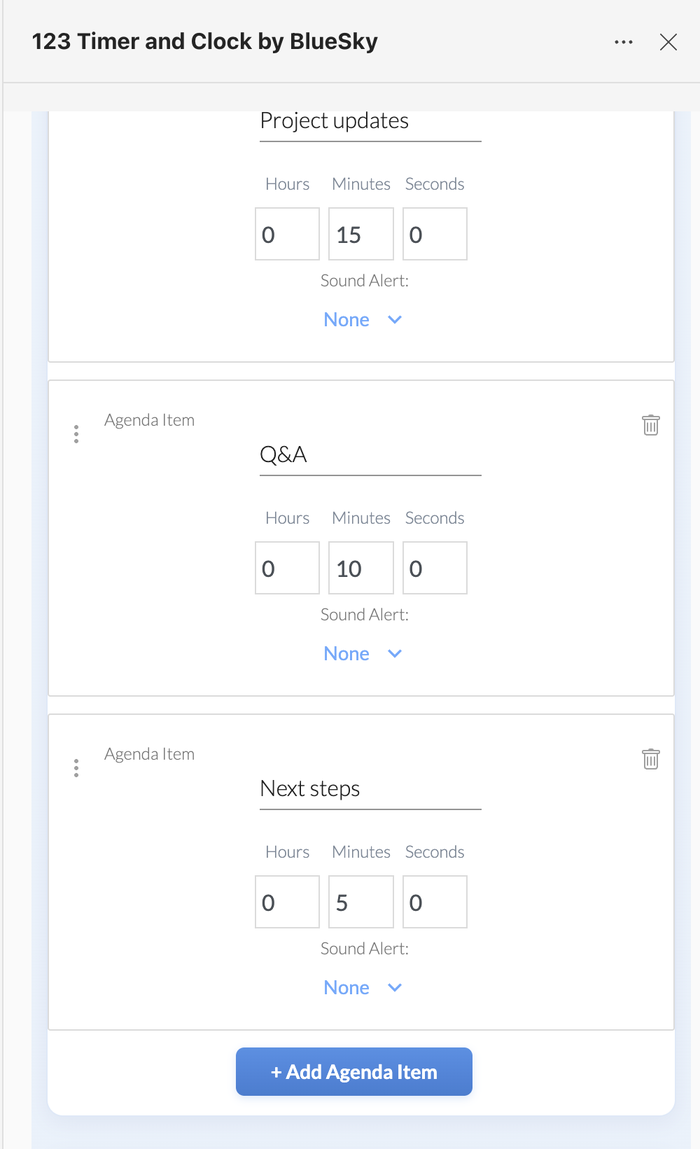 Each item gets its own name and time.
- If you'd like a sound when an item's time is up, pick one from Sound Alert under that item. Alert Sound Volume sets how loud it is.
 Agenda Timer sits between Simple Timer and Clock.
 Each item gets its own name and time.
Run the meeting
- Click Share Timer Display so everyone sees the agenda, attendees included.
- Click Start. The first item counts down, and when its time is up the next one starts by itself.
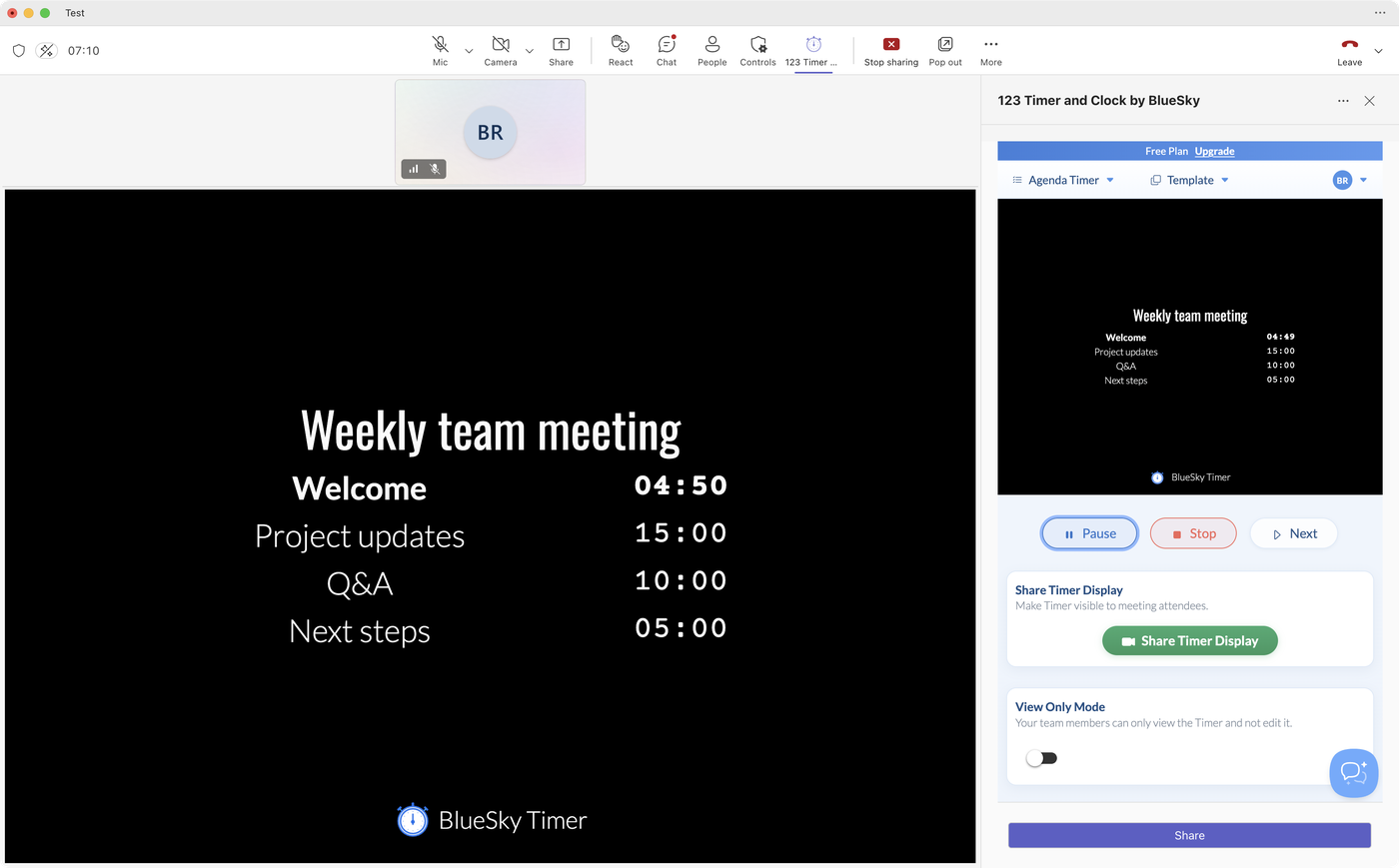 The current item is in bold, counting down.
- Finished an item early? Click Next to move on. Pause holds the clock if the conversation needs a minute.
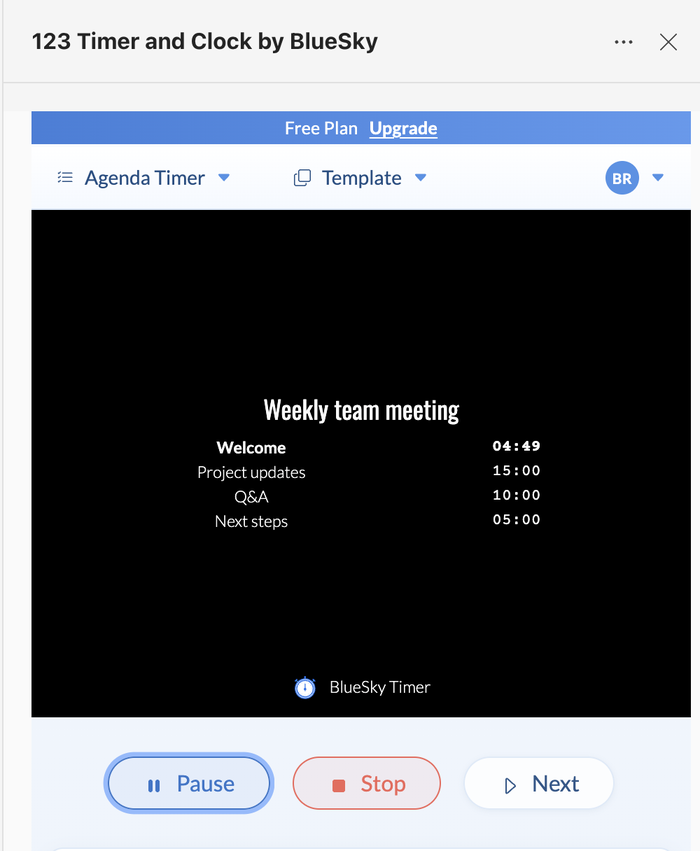 Pause, Stop and Next, right under the preview.
- After Next, the finished item greys out and the next one starts counting down.
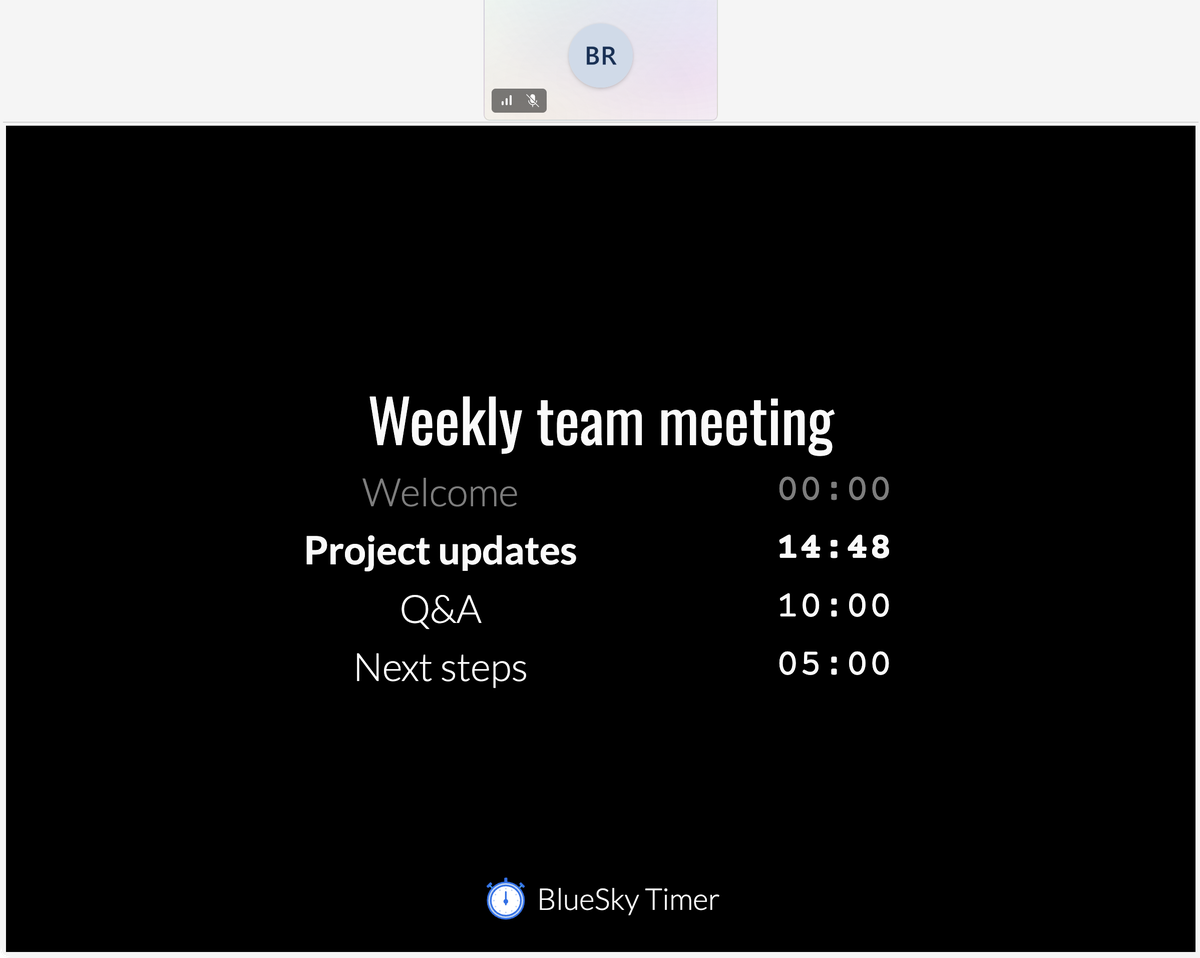 Project updates is now counting down; Welcome is done.
 The current item is in bold, counting down.
 Pause, Stop and Next, right under the preview.
 Project updates is now counting down; Welcome is done.
Anyone who opens 123 Timer in the meeting can use these buttons, so a colleague can keep time while you run the discussion. To keep the controls to yourself, turn on View Only Mode.
Choose how it looks
Scroll down the panel to the design settings. Layout has two choices: List shows every item with its time remaining, and Feature shows the current item large with "Up Next" in the corner. You can also change the Display Theme and the fonts for the title, items and timer.
Use it again next week
Your agenda saves itself as you go, and your next meeting starts from it. For a few different meetings (a standup, a planning session), save each as its own template from the Template menu. See Save timer and agenda templates for recurring Teams meetings.
Teams' built-in options and 123 Timer
| What you need | Teams' built-in timer | 123 Timer Agenda Timer |
|---|---|---|
| A time for each agenda item | No, one countdown | Yes, up to 10 items |
| Next item starts on its own | No | Yes, or click Next |
| Seen by attendees | No, presenters only | Yes, when you share it |
| Longest countdown | 100 minutes | Set each item in hours, minutes and seconds |
Microsoft's Facilitator can also keep an agenda, but it needs a Microsoft Copilot license on top of an eligible Microsoft 365 and Teams license (Microsoft's guide).
Questions people ask
Can I show an agenda on screen in a Teams meeting?
Yes. For a single countdown, Teams has one under More. For an agenda that everyone can see, use 123 Timer's Agenda Timer and click Share Timer Display.
Can I reuse my agenda every week?
123 Timer keeps your agenda as a template, so a weekly meeting is ready the moment you open the app. You can keep several and switch between them from the Template menu.
What is a good agenda for a team meeting?
Short and in order of importance. A 35-minute weekly meeting might be: welcome, 5 minutes; project updates, 15 minutes; questions, 10 minutes; next steps, 5 minutes. Put the decisions you need early, while people are fresh.
Is there a meeting agenda app for Microsoft Teams?
123 Timer and Clock is one. It runs in the meeting's side panel and shares the agenda to the meeting screen. The free plan covers 2 meetings a month, up to 60 minutes each.
Do I need Copilot or Teams Premium?
No. 123 Timer works with ordinary Teams meetings and doesn't need a Microsoft add-on license.
Related
- Speaker and presentation timer for Microsoft Teams
- Countdown, count-up, agenda or clock: choosing a timer in Teams
Still stuck? Send us a message and our team will help.