
Speaker and presentation timer for Microsoft Teams
A countdown the speaker can see is the kindest way to keep a talk to time. Nobody has to interrupt: the timer changes color as time runs low, and it can show how far over they've gone. Teams' built-in timer counts down for up to 100 minutes and shows to presenters only; 123 Timer adds the color cues, overtime and a lineup of speakers.
Time one speaker
- Open 123 Timer in your meeting. If it isn't there yet, click More, then Get more apps and agents, and add 123 Timer and Clock by BlueSky.
- Choose Simple Timer, set Count Direction to Count Down, and set the slot in Count Time.
- Set Warning Time (say, 2 minutes left) and Alert Time (say, 30 seconds left). The timer changes color at each, and each can play a sound.
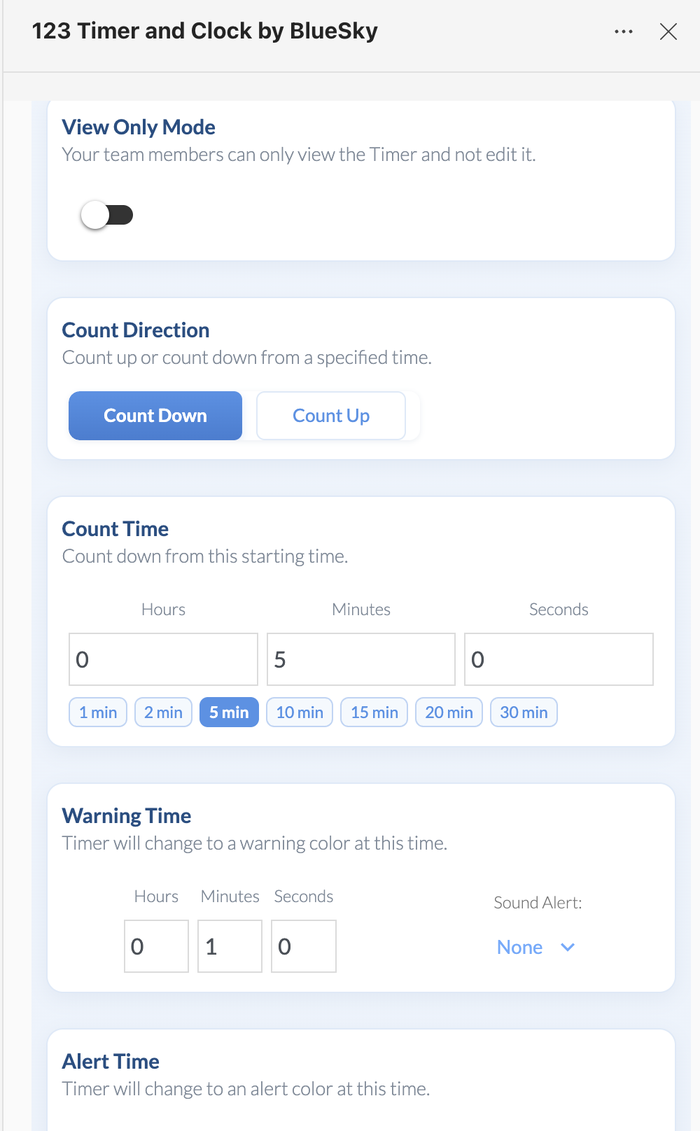 Warning Time and Alert Time give the speaker color cues.
- Under After Timer Count Ends, choose Keep Counting so the timer shows negative seconds if the talk runs over.
- Click Share Timer Display, then Start Timer when the speaker begins.
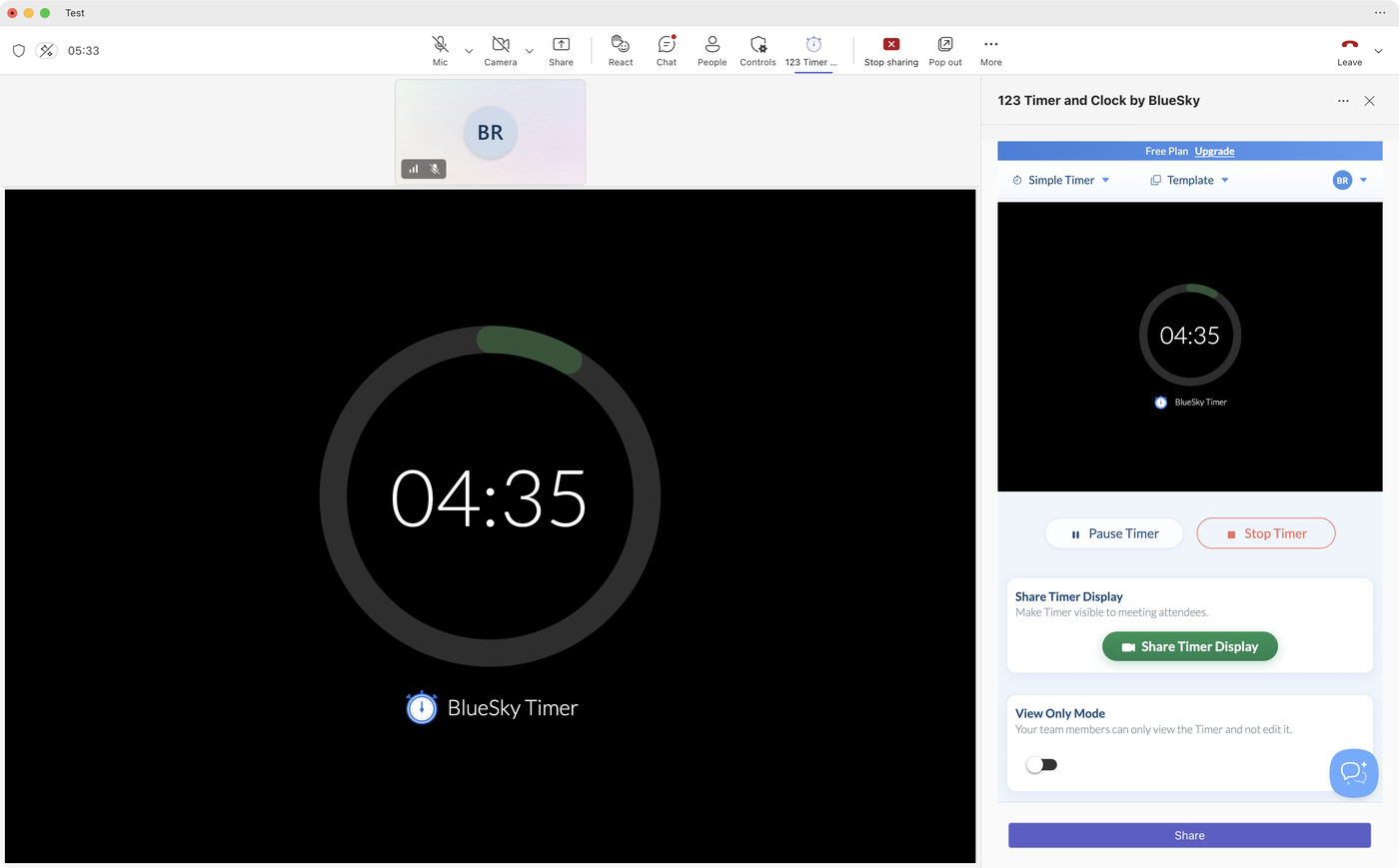 The speaker and the audience see the same countdown.
 Warning Time and Alert Time give the speaker color cues.
 The speaker and the audience see the same countdown.
Time a lineup of speakers
For a panel, a demo day or a round of updates, use an Agenda Timer. Add each speaker as an item with their time, up to 10. When one speaker's time is up, the next starts by itself, and Next moves on early if someone finishes ahead of time. Steps: Add an agenda timer to a Microsoft Teams meeting.
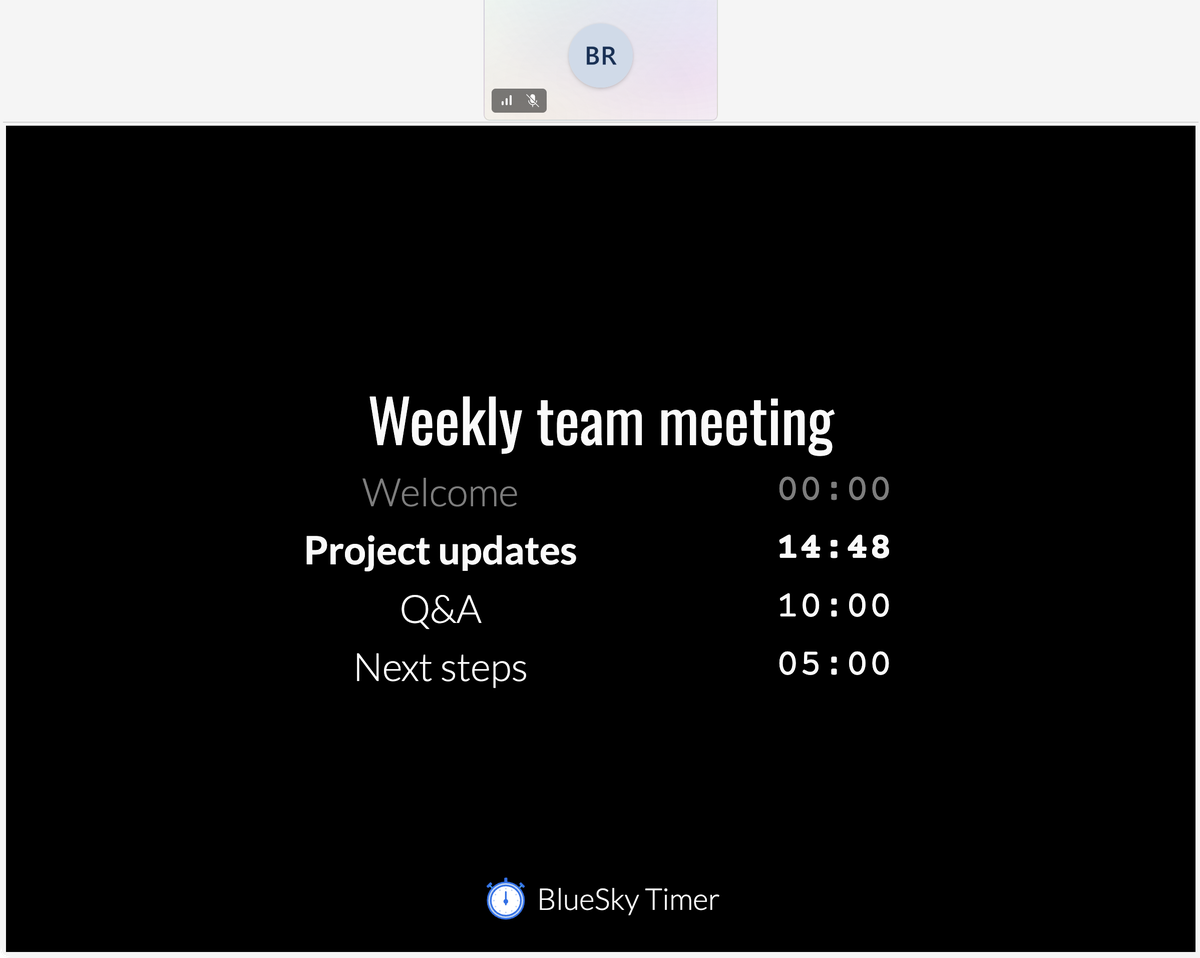 Each speaker gets a line and a countdown.
When there's no fixed slot
Set Count Direction to Count Up. It works like a stopwatch, and Notice Time, Warning Time and Alert Time change the color at the times you choose, so a speaker knows when they've had 5, 8 and 10 minutes.
Let a timekeeper run it
The speaker shouldn't have to work the timer. Ask a colleague to open 123 Timer from the meeting toolbar: anyone who opens it gets the controls and sees the same live timer. If you'd rather nobody else touched it, turn on View Only Mode, and only the person who opened it first keeps the controls.
Questions people ask
How do I put a timer in a presentation?
In a Teams meeting, run the timer next to the presentation rather than inside the slides. Start 123 Timer from the side panel, and the speaker can keep an eye on it there while they present.
Can the audience see the speaker timer?
Yes. Add 123 Timer and click Share Timer Display. Attendees see it too.
Can I use Teams' built-in timer for speakers?
You can, but it's Microsoft's basic countdown, under More in a meeting. It runs up to 100 minutes and shows to presenters only.
First time adding a timer? How to add a timer to a Microsoft Teams meeting takes about a minute.
Still stuck? Send us a message and our team will help.