
Save timer and agenda templates for recurring Teams meetings
Set up your weekly meeting's timer once and it's ready every week. 123 Timer saves your changes as you make them, and your next meeting opens with the settings you used last. Templates let you keep a few setups, such as a standup, a planning session and a workshop, and switch between them in one click.
How saving works
Everything you change in the panel (timer type, times, agenda items, colors, branding) saves automatically to the template you're using. Open the Template menu at the top of the panel and you'll see its name next to Auto-saving to:. Your first template is called Default.
 The Template menu shows which template your changes are saving to.
Save a new template
- Set up the timer or agenda the way you want it.
- Click Template at the top of the panel, then + New Template.
- Give it a name, like "Weekly team meeting", and click Save.
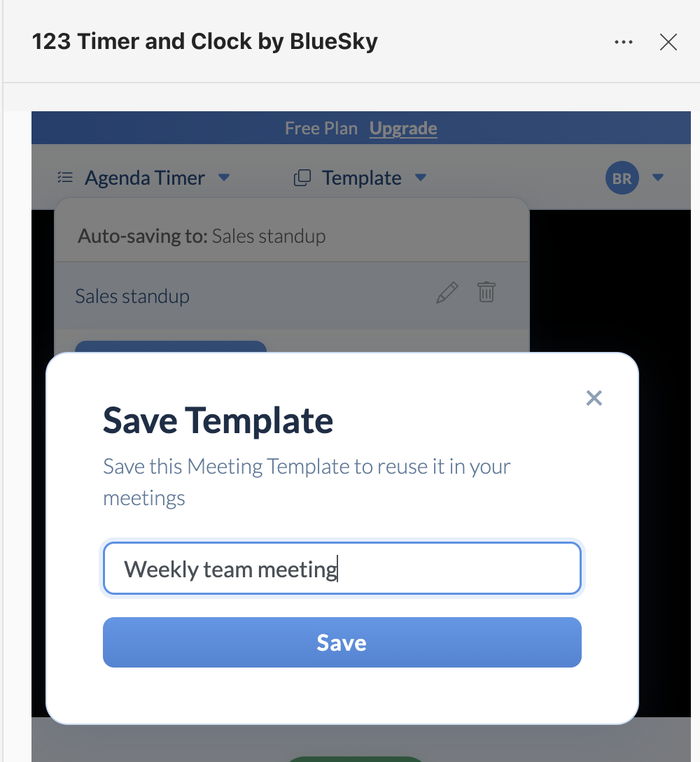 Name the template so you'll recognize it next week.
 Name the template so you'll recognize it next week.
From now on, changes save to the new template, and your earlier one stays as it was.
Switch, rename or delete
- To use another template, open the Template menu and click its name.
- To rename one, click the pencil next to it.
- To delete one, click the bin next to it.
Because changes save as you go, switch to the right template before you edit. Otherwise you'll change the one you had open.
Questions people ask
Does Teams have a meeting agenda template?
123 Timer gives you one that runs: save an agenda with a time for each item, and next week it's ready to start. See Add an agenda timer to a Microsoft Teams meeting.
Do I need to save before the meeting ends?
No. There's no save button to remember. Your changes are saved to the current template while you work.
Can my colleagues use my templates?
Templates belong to your BlueSky account. A colleague who runs the timer in their own meetings keeps their own templates.
Which template does a new meeting use?
The one you used last. Switch from the Template menu if this meeting needs a different one.
Related
- Countdown, count-up, agenda or clock: choosing a timer in Teams
- How to add a timer to a Microsoft Teams meeting
Still stuck? Send us a message and our team will help.