
How to see poll results during and after a meeting
Don't have the app yet? Add 123 Polls & Surveys to Microsoft Teams. Already have it? Open it in Teams.
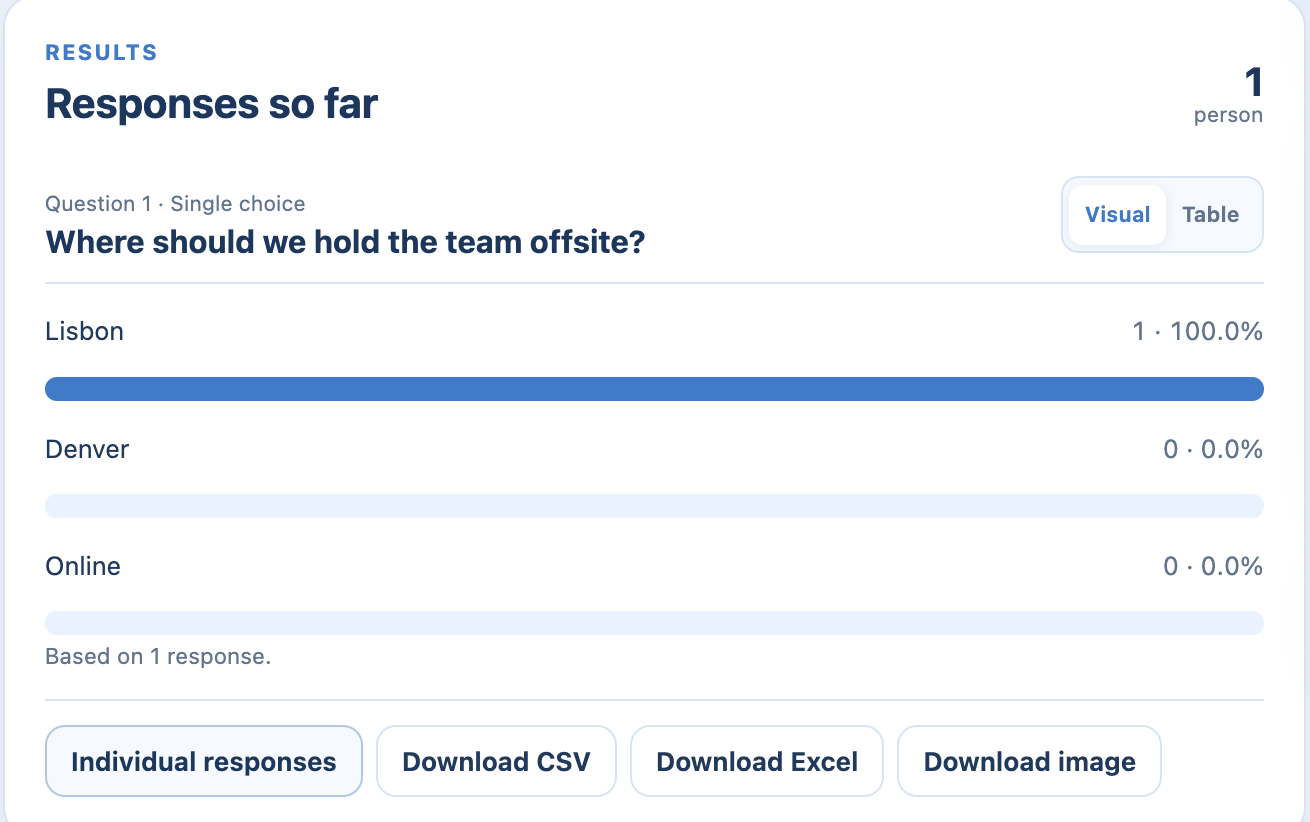
Results appear in 123 Polls & Surveys as soon as people answer. During the meeting, watch them on the Run tab. Afterwards, open the Results tab in the meeting or Poll history on the BlueSky website.
During the meeting
- The Run tab shows Waiting for responses until the first answer, then the results update live.
- On the Results tab, choose a poll to see each question and the individual answers.
- Participants see results only when your When participants see results setting allows. See who sees names and results.
Percentages on multiple choice questions are out of the people who answered, so one person picking two options counts toward both.
After the meeting
- Open the meeting in Teams and click the 123 Polls & Surveys tab, then Results.
- Or go to Poll history: in the app, open your account menu and click Poll history, or visit blueskyapps.org/polls. Polls are grouped by meeting, chat or channel.
From either place you can download the results.
Who can see Poll history?
You see polls you created, polls in meetings where you own the polls, and polls you've been added to as a collaborator who runs it or manages its results. Drafts and test answers don't appear.
How long results are kept
Results stay in Poll history until you delete the poll.
Still stuck? Send us a message and our team will help.