
How to make an anonymous poll in Microsoft Teams
Don't have the app yet? Add 123 Polls & Surveys to Microsoft Teams. Already have it? Open it in Teams.
To run an anonymous poll in Teams, set Who can see names? to Anonymous in 123 Polls & Surveys before you run it. Names aren't saved with the answers, so nobody can see who voted for what: not other participants, not presenters, and not you.
Make it anonymous
- Create your poll with Quick poll or Create from scratch.
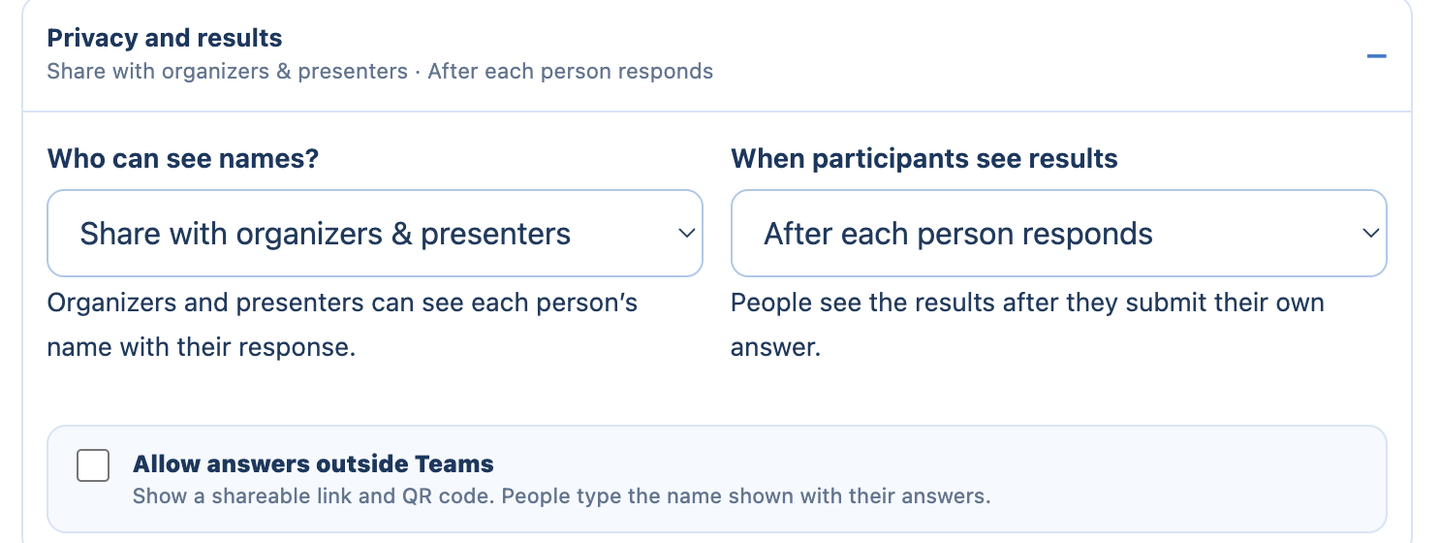
- In a quick poll, open Privacy and results. In the builder, find the privacy settings.
- Set Who can see names? to Anonymous.
- Run the poll.
The default is Share with organizers & presenters, so check this before you run a poll that should be anonymous.
What "anonymous" means here
- Names aren't saved with answers, so they can't appear in results, on the meeting screen, in Poll history or in downloads.
- Teams still signs people in to answer, and the app uses that to count each person once and let them change their answer while the poll is open. That record isn't linked to what they chose in any view or download.
- Written answers are shown as typed. If someone signs their name in a written answer, it shows.
- Results can still be shown to everyone. Who sees names and who sees results are separate settings. See who sees names and results.
People outside Teams
Anonymous polls work with the link and QR code too. People answering in a browser aren't asked for a name.
Still stuck? Send us a message and our team will help.