
How to make an anonymous poll in Zoom, or see who voted
Don't have the app yet? Add Polls, Surveys & Forms to Zoom. It's free to start. Already have it? Open it in Zoom.
New polls are anonymous unless you change it. Before you open a poll, Response settings asks Who can see names with answers? and gives you three choices.
 Response settings open, with Who can see names with answers? set to No names.
| Setting | Who sees names | What's saved |
|---|---|---|
| No names | Nobody | Only the answers |
| Poll creator and hosts | You and the meeting's hosts | Each person's name with their answers |
| People viewing results | Anyone who can see the results | Each person's name with their answers |
Make a poll anonymous
-
While writing your poll, open Response settings.
-
Under Who can see names with answers?, choose No names.
-
Open the poll.
People answering see a note that names aren't saved with responses.
See who voted
-
Before opening the poll, choose Poll creator and hosts (private to you and the hosts) or People viewing results.
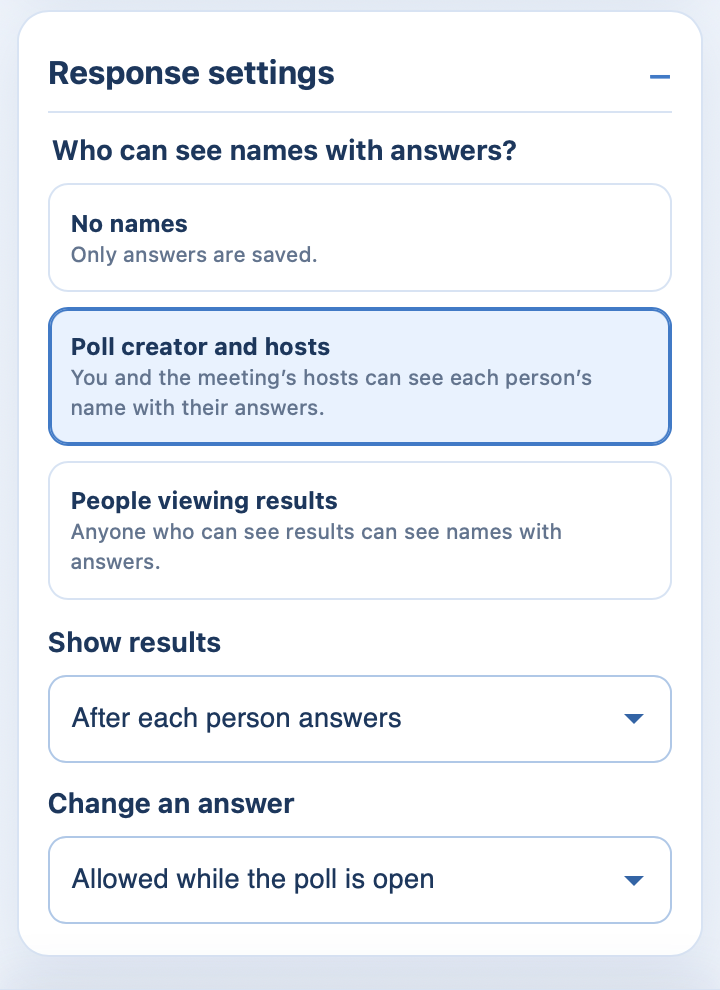 Response settings with Poll creator and hosts selected, so only you and the hosts see names.
-
Open the poll and collect answers.
-
On the Results tab, click View participant responses to see names with answers.
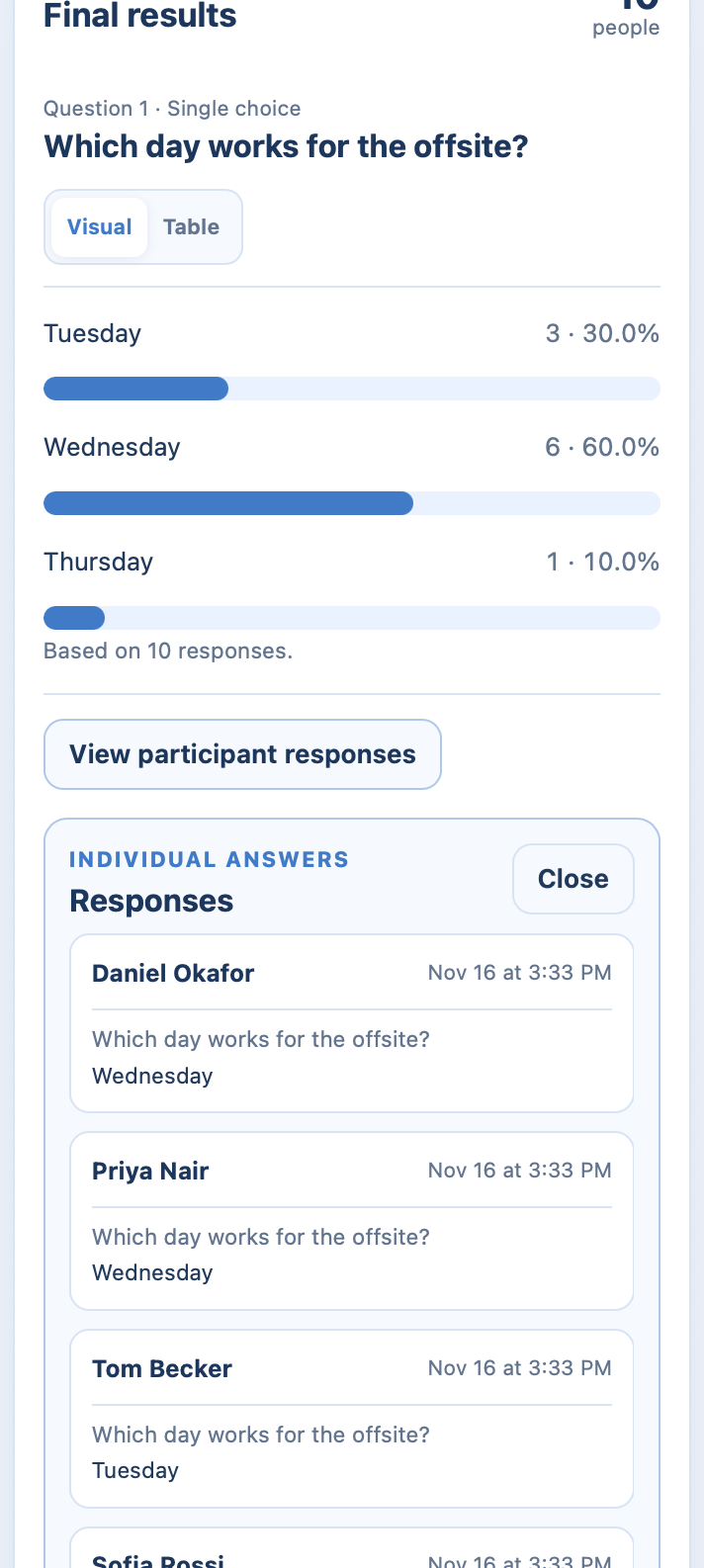 Results showing each person's name beside the answer they chose.
 Response settings with Poll creator and hosts selected, so only you and the hosts see names.
 Results showing each person's name beside the answer they chose.
Names are also in the CSV download: see results and CSV.
Good to know
-
Choose before you open the poll. The setting can't be changed once the poll is open.
-
People in Zoom answer under their Zoom name. People using a voting link type their own name, and nobody checks it, so don't rely on a link for a vote where identity matters.
-
With No names, written answers can still appear in results when you show them. Tell people if you plan to put them on screen.
-
Templates start with No names.
Still stuck? Send us a message and our team will help.