
How to see Zoom poll results and download them as a CSV
Don't have the app yet? Add Polls, Surveys & Forms to Zoom. It's free to start. Already have it? Open it in Zoom.
Results fill in while people answer, on the Results tab. You decide when participants see them, and you can download a CSV during the meeting or weeks later.
Watch results come in
Open the Results tab. The poll that's open in this meeting is at the top, and Past results lists polls you've run before.
 The Results tab, with the latest poll's final results on top and earlier polls under Past results.
Choose when participants see results
Before opening a poll, open Response settings and set Show results:
-
After each person answers: people see results once they've answered.
-
As answers come in: everyone sees results live.
-
After responses close: results appear when you close the poll.
-
When I choose to show them: nothing shows until you click Show results to participants.
-
Only to me and the meeting's hosts: participants never see them.
 The Show results menu open, listing when participants can see results.
Close, reopen or withdraw
-
Close responses stops new answers and keeps the results.
-
More actions, then Reopen responses, lets latecomers answer. Only the meeting's latest poll can be reopened.
-
Withdraw poll takes the poll away from participants. On Results, on the open poll's card, click More actions, then Withdraw poll, then Withdraw to confirm. A withdrawn poll can't be reopened.
Download a CSV
-
On the poll, click More actions, then Download results. For an older poll, open Results, click View beside it under Past results, then Download results.
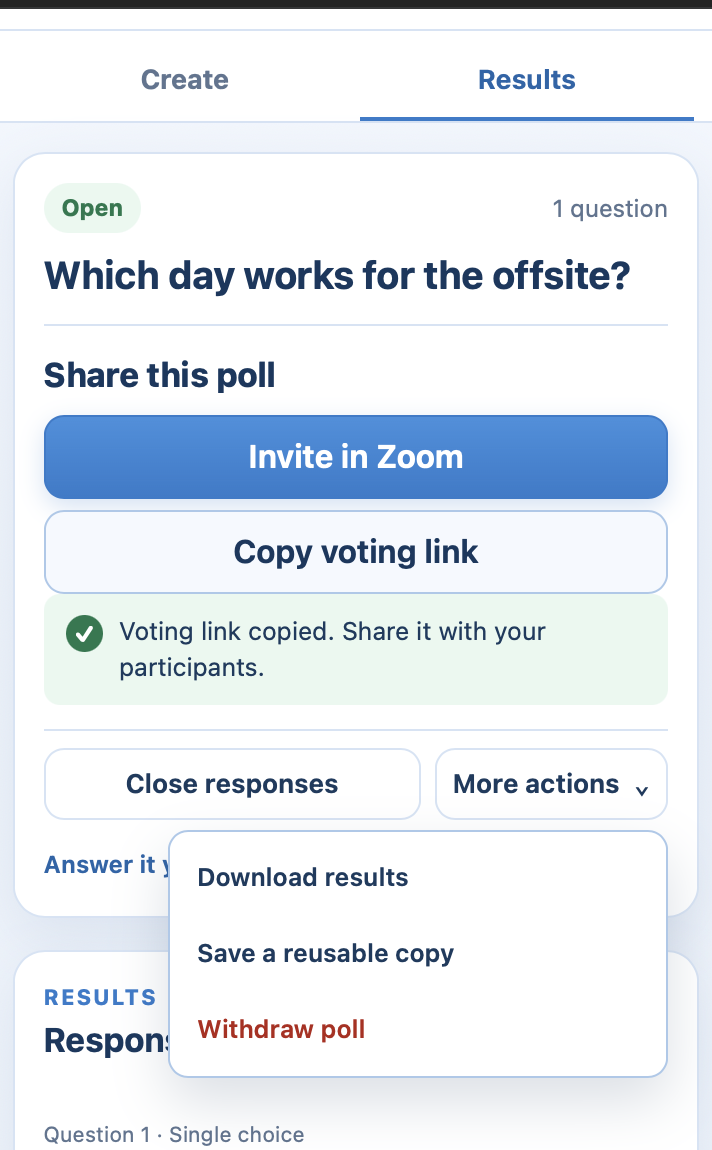 More actions open, with Download results ringed.
-
The file downloads in your web browser, not inside Zoom.
 More actions open, with Download results ringed.
The CSV starts with a summary of each question: Question, Type, Result, Count and Respondents. If the poll collected names, a second section lists every answer with Name, Submitted at, Question and Answer, written answers included. In a poll with No names, the text of written answers isn't in the file. Times are in UTC, and the file says so.
Who can do this?
The poll's creator and the meeting's host and co-hosts. See who can manage a poll.
Still stuck? Send us a message and our team will help.