
I can't find 123 Polls & Surveys in my Teams meeting
Don't have the app yet? Add 123 Polls & Surveys to Microsoft Teams first. Already have it? Open it in Teams.
If 123 Polls & Surveys isn't in your meeting, it's usually one of three things: the app isn't installed yet, the meeting is a type the app doesn't support, or your organization hasn't allowed the app. Work down this list.
1. Is the app installed?
Open 123 Polls & Surveys in Teams. If you see Add, click it. If you see Open, it's installed.
2. Is it a scheduled meeting?
The app works in private scheduled meetings. It isn't available in:
- instant "Meet now" calls
- meetings started from a channel
- webinars and town halls
Schedule the meeting from your Teams calendar instead. See where it works.
3. Have you added it to this meeting?
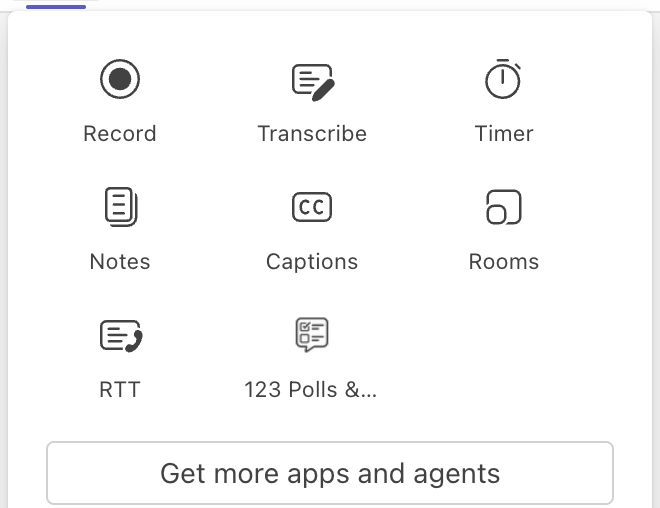
Installing the app doesn't add it to every meeting. In the meeting, click Apps, choose 123 Polls & Surveys, then Save. If you don't see Apps in the toolbar, look under More (the ...).
4. Are you an organizer or presenter?
Attendees can answer polls but can't add apps to a meeting. Ask the organizer to add it, or to make you a presenter.
5. Does your organization allow it?
If Add is greyed out, or Teams says the app is blocked, your Teams admin controls which apps people can use. Ask them to allow 123 Polls & Surveys in the Teams admin center under Manage apps. We're happy to answer your IT team's questions.
Still stuck? Send us a message with a screenshot and we'll help.