
How to delete a poll and its responses
Don't have the app yet? Add 123 Polls & Surveys to Microsoft Teams. Already have it? Open it in Teams.
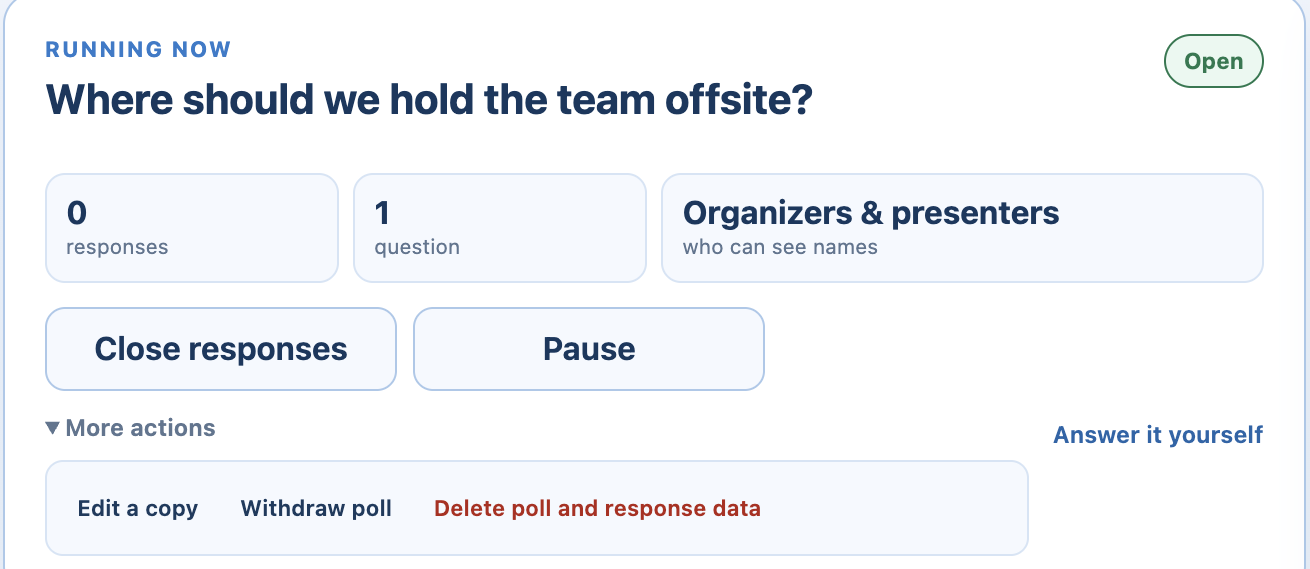
The meeting organizer can delete a poll and all its responses from More actions in 123 Polls & Surveys. If you only want to stop a poll, withdraw it instead: people see it was withdrawn, and you keep the results.
Withdraw or delete?
| Withdraw poll | Delete poll and response data | |
|---|---|---|
| Stops new answers | Yes | Yes |
| Participants see | "This poll was withdrawn", with no results | Nothing |
| You keep the results | Yes | No, permanently |
| Who can do it | Anyone running the poll | The meeting organizer |
Delete a poll
- Open the poll in the meeting.
- Click More actions, then Delete poll and response data.
- Click Delete permanently.
This can't be undone. Download the results first if you might need them. See downloading results.
Automatic deletion
Polls and their responses are kept until you delete them, or until your BlueSky account is deleted.
Delete everything
To delete your BlueSky account and the polls in it, send us a message from the email address on your account.
Uninstalling the app doesn't delete your polls. See uninstalling.