
How to start, pause, close and reopen a poll
Don't have the app yet? Add 123 Polls & Surveys to Microsoft Teams. Already have it? Open it in Teams.
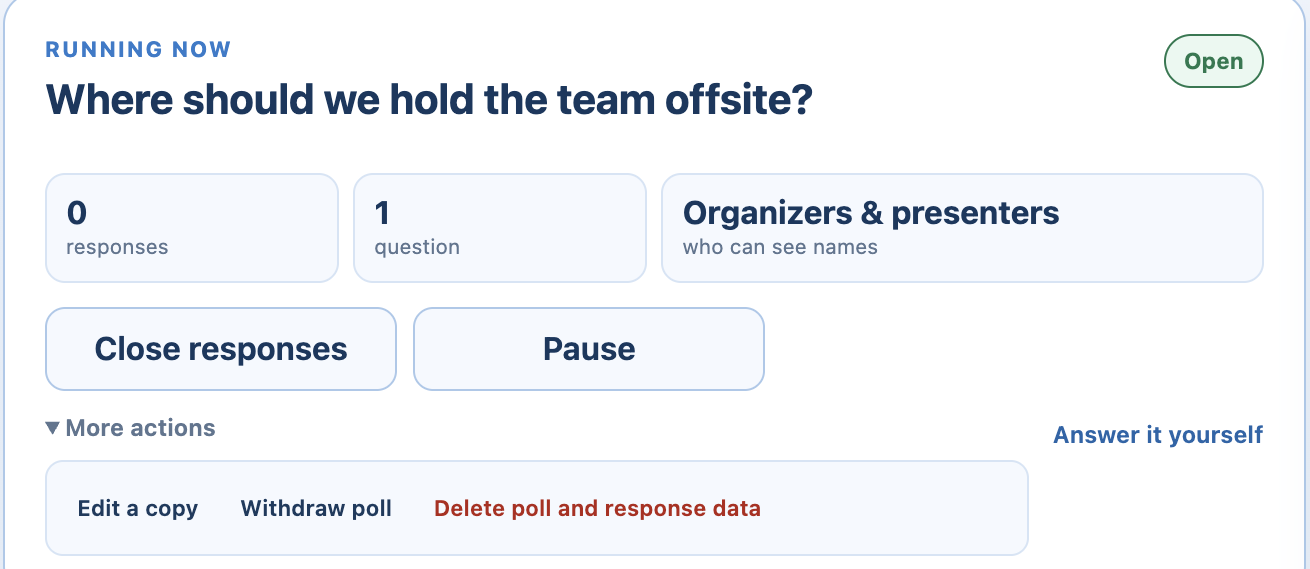
Everything that controls a running poll is on the Run tab of 123 Polls & Surveys. You can pause it, close it, reopen it, or withdraw it, and the meeting chat card updates to match.
The controls
| Button | What it does |
|---|---|
| Run poll / Run survey | Opens it for answers |
| Pause | Stops new answers for now. Resume responses opens it again |
| Close responses | Ends it. The final results stay on screen |
| Reopen responses | Opens a closed poll again. Earlier answers are kept |
| Reveal results / Hide results | Shows or hides results, when results are set to Reveal manually |
| More actions → Run again | Runs a closed poll again from the start, with no responses |
| More actions → Edit a copy | Makes an editable copy |
| More actions → Withdraw poll | Takes it back. People see that it was withdrawn, and results are hidden from them |
| More actions → Archive | Tidies a closed poll away |
After you close a poll, Create another poll is the next step on screen.
When the meeting ends
Any poll still open closes on its own when the Teams meeting ends. Results stay in the Results tab and in Poll history.
Open and close it automatically
When you build a poll, open Privacy, results, and scheduling:
- Schedule to run opens it at a set time.
- Response deadline closes it at a set time. Answers after the deadline aren't accepted.
Answer it yourself
Click Answer it yourself under the poll to vote from the side panel. Your answer counts like anyone else's.
Still stuck? Send us a message and our team will help.