
How to run a quiz in a Microsoft Teams meeting
Don't have the app yet? Add 123 Polls & Surveys to Microsoft Teams. Already have it? Open it in Teams.
You can run a quiz in a Teams meeting by adding Quiz questions in 123 Polls & Surveys. You mark the correct answers, people answer in Teams, and nobody sees which answers were right until you click Reveal results.
Make the quiz
- Open 123 Polls & Surveys in your meeting and click Create from scratch. (Or use the Training check template.)
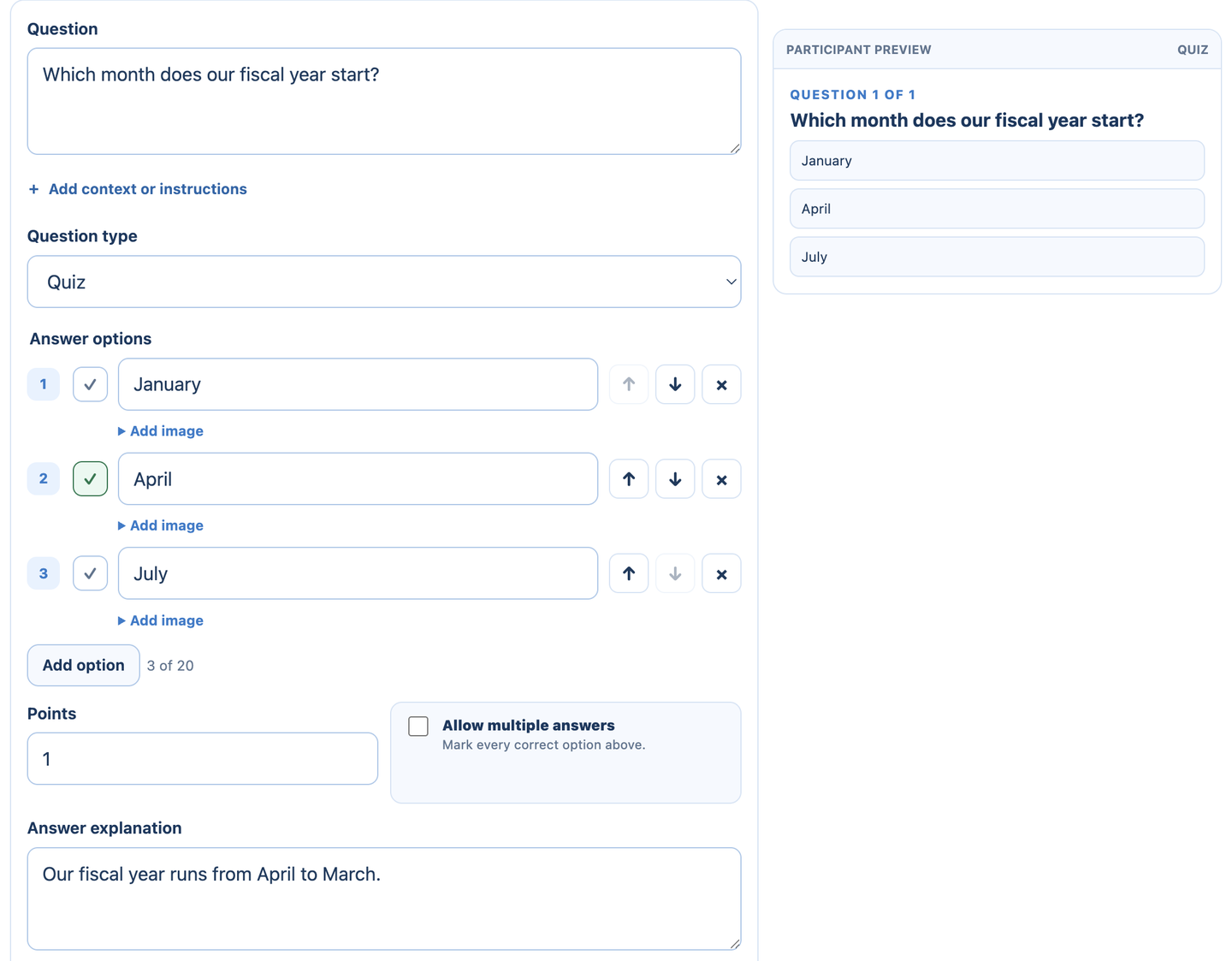
- Type your question and set Question type to Quiz.
- Type the answers and tick Correct answer on each right one. You can mark more than one.
- Optional: fill in Answer explanation to explain the answer, and set Points.
- Click Add another question for the next one.
- Under When participants see results, choose Reveal manually.
Run it and reveal the answers
- Click Run survey (or Run poll for a single question) and share it on the meeting screen or in the meeting chat.
- Watch the answers come in. Participants can't see the correct answers yet, and the app doesn't send them to their device until you reveal.
- Click Reveal results to show the results, the correct answers and your explanations.
Tips
- Before training, a Team pulse or Confidence check shows how ready people feel. Run the quiz after.
- Want names on the scores? Set Who can see names to show them to organizers and presenters, then download the Excel file afterwards. See downloading results.
Still stuck? Send us a message and our team will help.