
Where to find your notes, summary and transcript after a Zoom meeting
Once your Zoom meeting ends, your Notetaker AI notes are on blueskyapps.org under AI Meeting Notes: the summary, action items, a speaking-time chart, the full transcript and the video if you recorded one. From the app, open the account menu at the top right and click AI Notes.
Open your notes
- Open the account menu at the top right of Notetaker AI and click AI Notes, or go to blueskyapps.org/transcriptions. On the website you can also go to My Account and click View AI Notes.
- Your meetings are listed newest first, by Meeting and Date. Click View Meeting Notes beside the one you want.
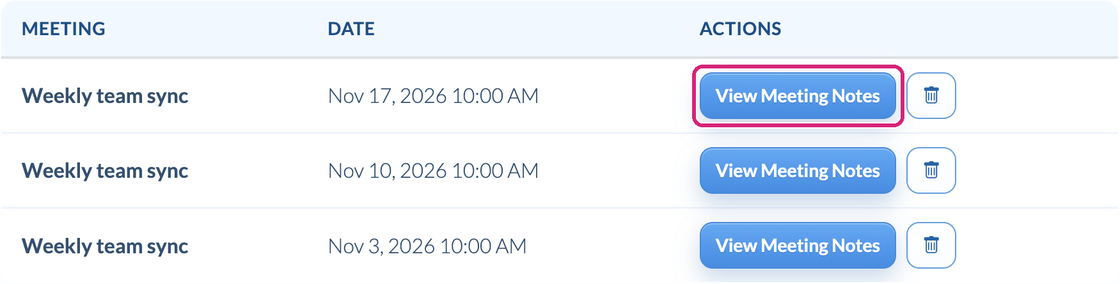 Your meetings are listed newest first, each with its own notes.
 Your meetings are listed newest first, each with its own notes.
Your BlueSky Apps dashboard has the same list under AI Meeting Notes, with View Notes beside each meeting and View All AI Notetaker Records below.
What's in a meeting's notes
- Meeting Summary covers what was discussed, written by AI from the transcript.
- Action Items lists the next steps agreed in the meeting. If nobody agreed any out loud, the AI suggests some.
- Participation is a chart of how long each person spoke.
- Transcript has everything said, line by line, under each speaker's name.
- The video plays beside the transcript if Record Video was on.
 The summary and action items sit above the speaking-time chart and the transcript.
The page says "AI Notetaker can make mistakes. Check important info." Read the summary and action items before you send them on.
Download the notes
At the top of a meeting's notes, PDF downloads them as a PDF and DOC as a Word file you can edit, for minutes or a shared document. If the meeting has a video, Video downloads it as an MP4 file.
Get the notes by email
After the meeting, the notes are emailed to the one address under Email Address on the app's Settings tab, which starts as your own. The email comes from BlueSky Notetaker AI with the subject "Meeting Notes for" and the meeting's name. It has the summary, the next steps and the speaking-time chart, the notes attached as a PDF, and a link to the meeting's notes page.
To send the notes to a different inbox, such as an assistant or a shared team mailbox:
- In your meeting, open Notetaker AI and click the Settings tab.
- Turn on Email Summary, then type the address under Email Address.
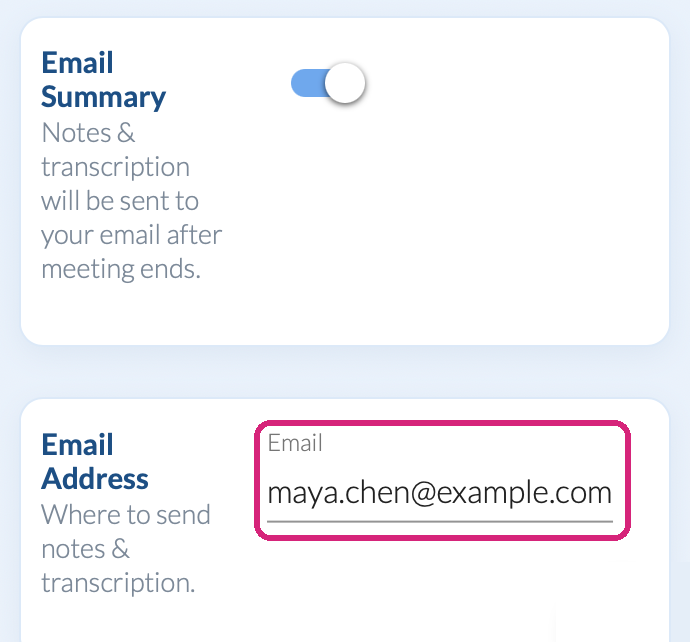 The notes go to the one address in this field.
 The notes go to the one address in this field.
Notetaker AI emails only that address. It doesn't email anyone else in the meeting.
If a meeting isn't there
- The notes are written when the Notetaker leaves the meeting, so they appear once it has ended. Until your first meeting has ended, the page says "No meeting notes yet".
- The notes are kept in the account of the person who started the Notetaker, so check you're signed in to that one. If you can't get in, see Can't sign in, or the BlueSky Apps dashboard won't load.
- If the Notetaker was left in the waiting room and never got into the meeting, it had nothing to write down. See BlueSky Notetaker AI can't join my Zoom meeting.
Questions people ask
Can other people in the meeting see the notes?
Not on the website: only the BlueSky Apps account that started the Notetaker can open them. To share them, download the PDF or Word file and send it, or put a shared address under Email Address.
How long are my notes kept, and how do I delete them?
Until you delete them or your account. The steps are in Is BlueSky Notetaker AI for Zoom safe? What it records and where notes are stored.
Still stuck? Send us a message and our team will help.