
Add and remove people on a BlueSky Apps team plan
As the owner of a BlueSky Apps team plan, you add each person by their email address on Manage Seats, and they get Pro Unlimited as soon as they use BlueSky with that address. Removing someone frees their seat for a colleague.
Before you start
- You manage seats from the account that bought the plan. Manage Seats appears on its My Account page once a plan has more than one seat.
- You take one seat yourself, so a 5-seat plan has room for you and 4 more people.
- Use the email address each person's BlueSky account uses: the one they sign in to Zoom, Microsoft Teams or Google with when they open a BlueSky app.
Add someone to your plan
- Open My Account and click Manage Seats.
- Under People on your plan, type their email address in the box and click Add.
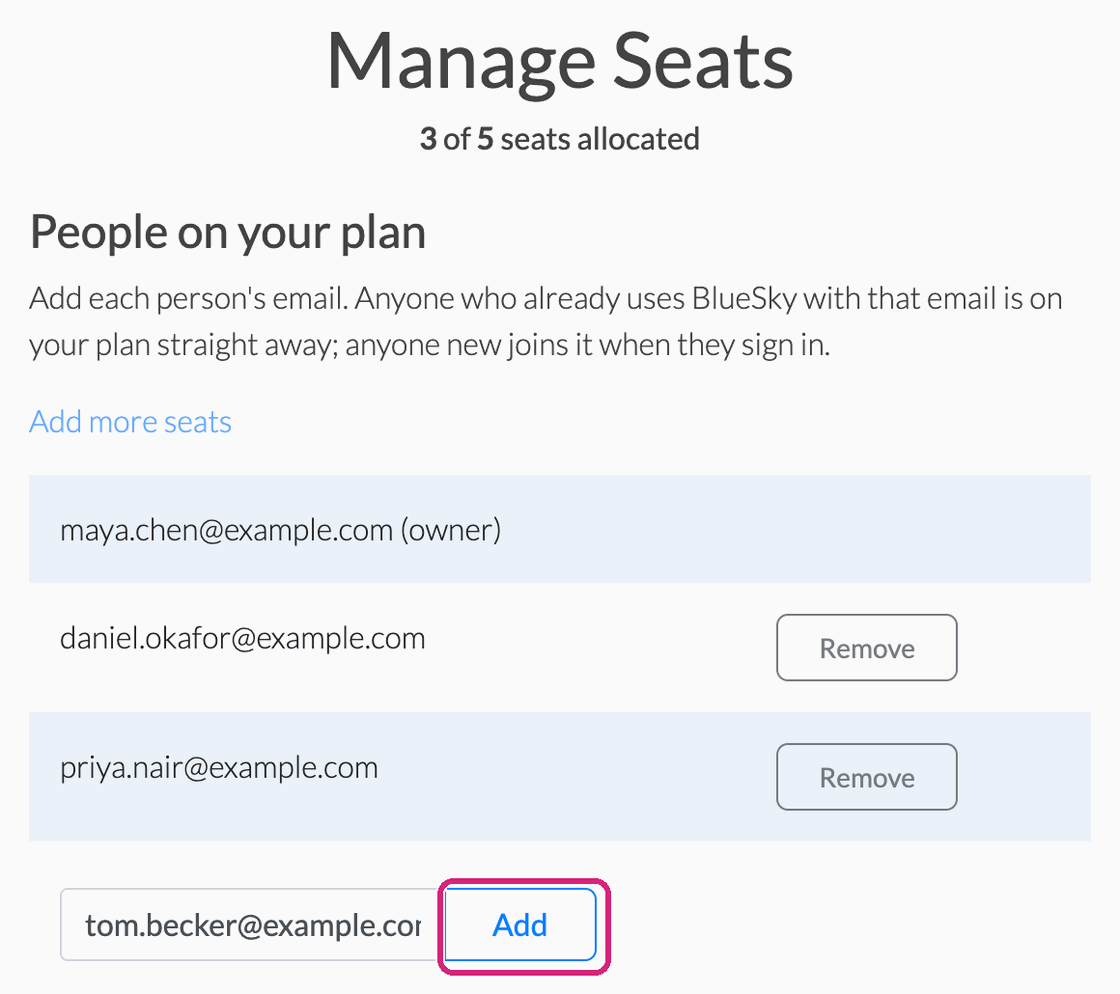 The count at the top includes your own seat.
 The count at the top includes your own seat.
If they already use BlueSky with that email, the page says "Seat added. They're on your plan now." If not, they join the plan as soon as they sign in to BlueSky with it.
If a seat can't be added
- "Every seat is taken. Add more seats to invite them." Add seats as below, or remove someone first.
- "That email already has a seat on a BlueSky plan." They're on another plan already. Ask whoever runs it to remove them.
- "That person pays for a BlueSky plan of their own." So they aren't charged twice, ask them to cancel their plan (see Cancel, pause or get a refund on a BlueSky Apps plan), then add them.
Add more seats
- On Manage Seats, click Add more seats.
- In Seats after the change, enter the new total. The new price for the whole plan appears below it.
- Click Add seats.
If the new price is higher, you pay the difference for the rest of the current month or year straight away, on your plan's payment method. If it's lower, because a bigger team pays less for each seat, the difference comes off your next payment. If Add more seats isn't on your page, write to us and we'll add them.
Remove someone
On Manage Seats, click Remove beside their email. The page says "Seat removed. They're off your plan." Their seat is free for someone else, and their own BlueSky account, with its reports and templates, stays theirs.
Removing someone doesn't lower what you pay. To pay for fewer seats, write to us.
Questions people ask
Can everyone with our organization's email address join automatically?
Our team can tie a whole email domain to your plan. Write to us with the domain. Once one is set, it's listed under Whitelisted Domains on Manage Seats.
How do I buy a team plan in the first place?
See Buy BlueSky for your team.
Still stuck? Send us a message and our team will help.