
How to run a poll in Zoom breakout rooms
Don't have the app yet? Add Polls, Surveys & Forms to Zoom. It's free to start. Already have it? Open it in Zoom.
Each breakout room has its own polls. A poll opened in the main meeting stays in the main meeting, and a poll opened in a room is for the people in that room, so each group can run its own vote. One thing to know first: the app doesn't follow you when you move into or out of a room, so you refresh it after each move.
Run a poll in a breakout room
-
Join the breakout room.
-
Open Polls, Surveys & Forms from Apps (or More > Apps). If it's already open, click ••• at the top of the app's panel and choose Refresh app.
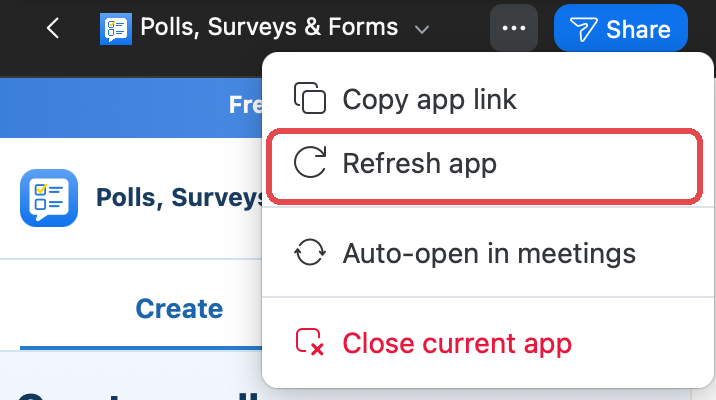 The ••• menu at the top of the app's panel, with Refresh app ringed.
-
Create and open the poll as usual.
 The ••• menu at the top of the app's panel, with Refresh app ringed.
When you go back to the main meeting, choose Refresh app again to see the main meeting's polls.
Reach every room with one poll
Open the poll in the main meeting, click Copy voting link, and paste it in the meeting chat before the rooms open. Zoom's broadcast messages to rooms don't carry clickable links, so the chat is the way to get it to everyone. People answer in a browser from whichever room they're in. The link works for two hours.
Still stuck? Send us a message and our team will help.