
How to add an image to a poll question
Don't have the app yet? Add 123 Polls & Surveys to Microsoft Teams. Already have it? Open it in Teams.
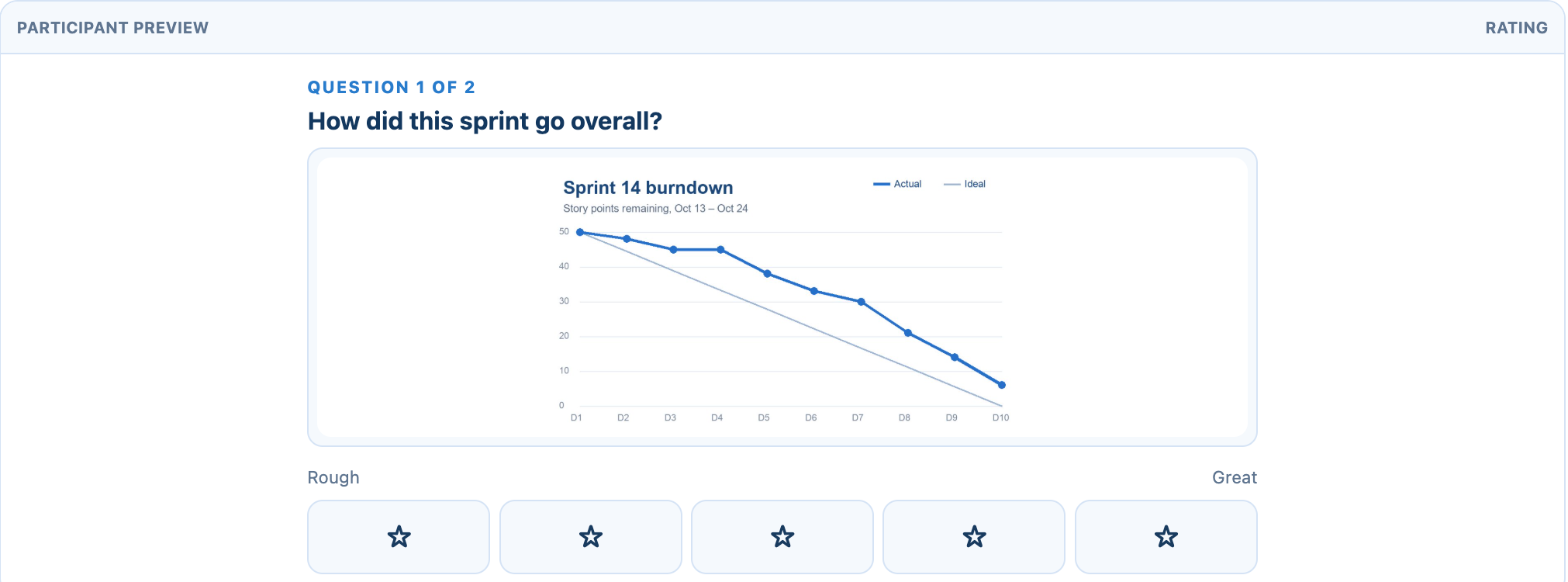
You can add an image to any question, and to individual answer options, when you build a poll in 123 Polls & Surveys. It's handy for "which design do you prefer?" votes and picture quizzes.
Add an image
- Open the poll in the builder (Create from scratch, or Build on an existing draft).
- Under the question, open Add an image and click Choose image. For an answer, click Add image next to it.
- The image appears in the question's preview straight away.
What files work
PNG, JPEG, GIF or WebP, up to 20 MB. The app resizes the image so it loads quickly for everyone, which means:
- Animated GIFs become still images.
- Very large photos are scaled down to 1,600 pixels on the longest side.
Images can't be added once a poll is running. To change one, click More actions, then Edit a copy.
Still stuck? Send us a message and our team will help.