
How to import poll questions from a CSV file
Don't have the app yet? Add 123 Polls & Surveys to Microsoft Teams. Already have it? Open your Poll library in Teams.
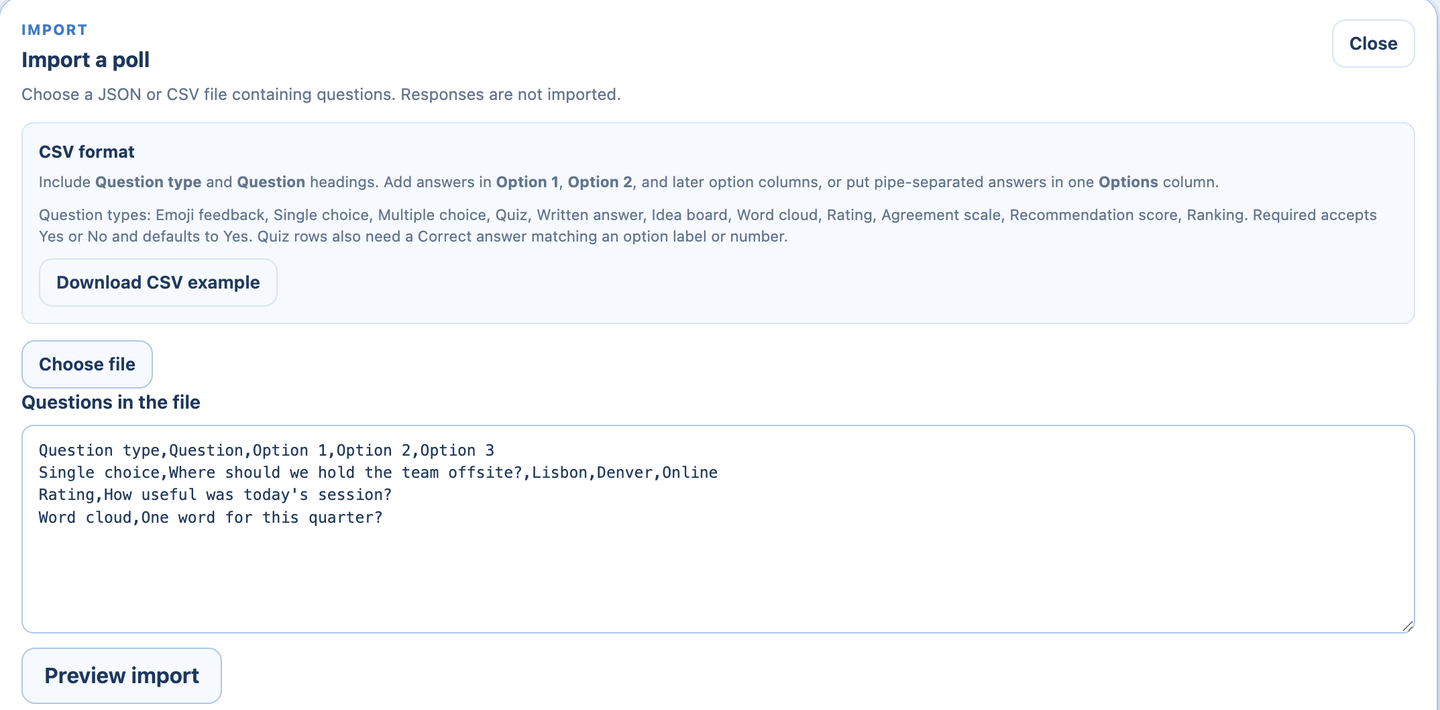
You can import a whole poll or survey from a CSV file, so a list of questions in Excel becomes a poll in a few seconds. Imports happen in your Poll library and bring in questions only, never responses.
Set up the file
One row per question. Two headings are required:
| Heading | What goes in it |
|---|---|
| Question type | Any type by its name, like Single choice, Multiple choice, Quiz, Rating, Word cloud or Ranking |
| Question | The question text |
Then the answers, either in Option 1, Option 2, Option 3 columns (as many as you need) or all in one Options column separated by |, like Red|Green|Blue.
Optional columns:
- Required:
YesorNo. Blank means Yes. - Correct answer: for Quiz rows, the matching answer text or its number.
Save from Excel as CSV UTF-8. Commas, semicolons and tabs all work. The file can be up to 1.5 MB. Not sure? Click Download CSV example in the import panel for a complete file to copy.
Import it
- Open your Poll library in Teams.
- Click Import, then choose your JSON or CSV file.
- Check the preview under Questions in the file. If a row has a problem, the app names the row so you can fix it.
- Confirm the import. The poll is saved to your library, ready to use in any meeting under Start with a template.
Nothing is saved until the whole file is valid, so a mistake never leaves half a poll behind.
Still stuck? Send us a message with your file attached and we'll take a look.