
How to use BlueSky Notetaker AI in a Zoom meeting
BlueSky Notetaker AI joins your Zoom meeting as a participant, writes down what's said while people talk, and gives you a summary, action items and the full transcript when the meeting ends. Open it from Zoom's Apps list, let it in from the waiting room and let it record.
It has to record to take notes: it listens to the meeting's audio, and it saves a video too unless you switch Record Video off.
Before you start
- Add Notetaker AI to your Zoom account. You do this once, and Add BlueSky Notetaker AI to Zoom walks through each screen.
- You need to be the host or a co-host of the meeting, signed in to Zoom with the account you added Notetaker AI to. The Notetaker joins only while you're in the meeting.
- Tell the people in your meeting that a notetaker will record it. Recording rules differ by place. See what Notetaker AI records and where your notes are stored.
Start the Notetaker in your meeting
- Start your meeting in the Zoom desktop app.
- In the meeting toolbar, click More, then Apps. If your toolbar already shows an Apps button, click that.
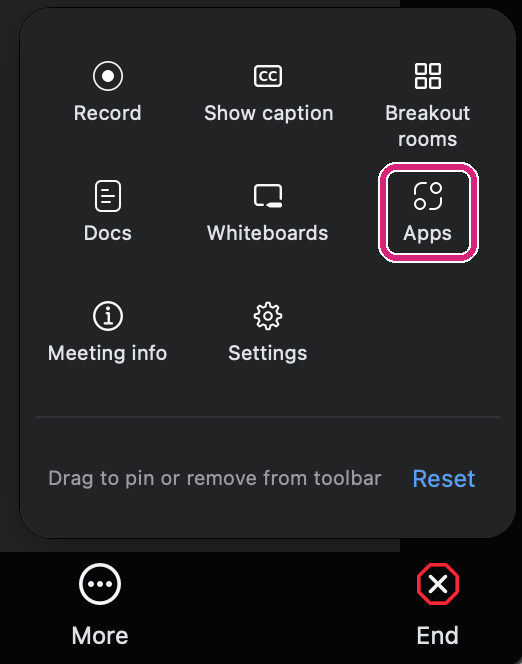 Apps sits inside the More menu on the meeting toolbar.
- Click Notetaker AI in your list of apps. If it isn't there, add Notetaker AI to Zoom first. If Zoom asks for permission, click Allow. The first time, a welcome message appears: click Let's go.
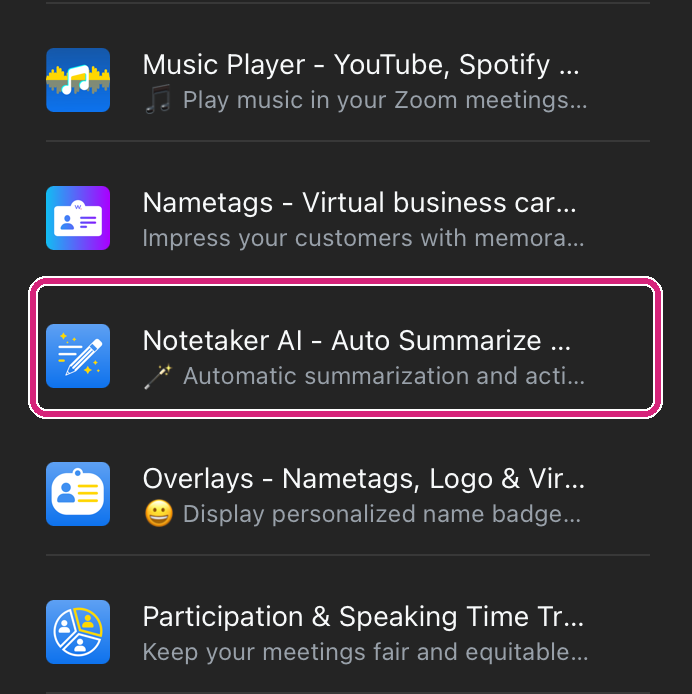 Zoom lists Notetaker AI with the other apps you've added.
- Opening the app sends the Notetaker to your meeting. The top of the app says "Notetaker is connecting to the meeting."
- While it connects, open the Settings tab and check Record Video. Switch it off if you want the transcript and summary without a video.
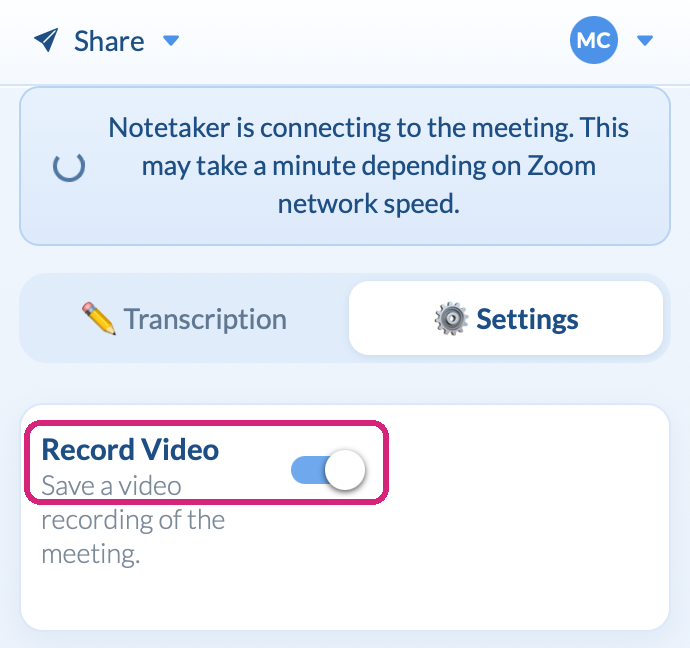 Record Video decides whether a video is saved with your notes.
- If your meeting has a waiting room, the app says "Please admit Notetaker into your meeting from the Zoom waiting room." Let BlueSky Notetaker AI in straight away, as you would any guest.
- The app says "Notetaker has joined your meeting", and Zoom asks the meeting's host to let the Notetaker record. Approve the request.
- Talk as usual. On the Transcription tab, each line appears under the speaker's name once they finish speaking.
 Apps sits inside the More menu on the meeting toolbar.
 Zoom lists Notetaker AI with the other apps you've added.
 Record Video decides whether a video is saved with your notes.
If the app says "Notetaker timed out trying to enter the meeting", click re-invite Notetaker in that message. If it says "Notetaker was denied permission to record audio", click Re-invite Notetaker and approve the request this time. For any other message, see BlueSky Notetaker AI can't join my Zoom meeting.
Get your notes when the meeting ends
The Notetaker leaves when the meeting ends. The transcript text is then sent to OpenAI, which writes the summary and action items. To read your notes, open the account menu at the top right of the app and click AI Notes, or go to blueskyapps.org/transcriptions. Then click View Meeting Notes.
You get the Meeting Summary, Action Items, a Participation chart of speaking time, the Transcript, and the video if you recorded one. PDF and DOC download the notes as a PDF or Word file. For the notes by email too, turn on Email Summary on the Settings tab and check the Email Address. See Where to find your notes, summary and transcript after a Zoom meeting.
What people in your meeting see
A participant named BlueSky Notetaker AI. Anyone in the meeting who opens Notetaker AI in their own Zoom sees the live transcript too.
To take the Notetaker out, remove BlueSky Notetaker AI from Zoom's Participants list.
Take notes in another language
Choose the language people will speak, from about 95, under Transcription Language on the Settings tab. The summary is written in it too. See Get Zoom meeting notes and a transcript in another language.
Take notes in the meetings you host automatically
Turn on Auto Join Meetings on the Settings tab, and the Notetaker joins the meetings you host, while you're in them, without you opening the app. See Take notes in your Zoom meetings automatically.
Questions people ask
Is Notetaker AI free?
Yes, for 2 meetings a month. On the Free plan the Notetaker leaves after about an hour. See Is BlueSky Notetaker AI for Zoom free? Plans, trial and limits.
Still stuck? Send us a message and our team will help.