
Play Spotify, Apple Music or YouTube in a Zoom meeting
With Music & YouTube Player switched on, a Spotify playlist, an Apple Music song or a YouTube video playing on your computer is heard by everyone in your Zoom meeting. You search all three from one box in the panel, click a result, and press play where it opens.
Zoom shares your computer's sound from its own share window (Zoom's page on sharing computer audio); that page covers sharing the sound, not finding the music. Music & YouTube Player does both from one panel. It doesn't play anything itself: the song plays on your computer, and Zoom shares it.
Before you start
- Add Music & YouTube Player to your Zoom account once. Add Music & YouTube Player to Zoom walks through it.
- Join the meeting in the Zoom desktop app on your computer.
Set it up: show only the services you use
Spotify, YouTube and Apple Music are all switched on at first. If you don't use one, turn off Show Spotify, Show YouTube or Show Apple Music below Browse, and search and Browse show only what you can play. With all three off, the panel reads "No music sources enabled".
During the meeting
- In the meeting toolbar, click More, then Apps. If your toolbar already shows an Apps button, click that.
- Click Music Player in your list of apps. If it isn't there, add Music & YouTube Player to Zoom first. If Zoom asks for permission, click Allow. The first time, a welcome message appears: click Let's go.
- Switch on Share Computer Audio. If Zoom asks, click Allow.
- Type a mood, song or artist in Search. Results appear under YouTube, Spotify and Apple Music, up to 10 each, with a "View more Spotify results →" link (and the same for the others) when you want more.
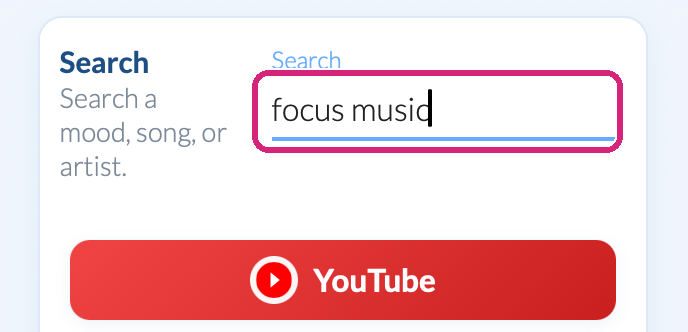 One search looks in all three services at once.
- Click a result. It opens outside Zoom, in your browser or in Spotify or Apple Music. Press play there, and the meeting hears it.
 One search looks in all three services at once.
Set the volume in the app that's playing or on your computer: Zoom's page says that is where volume for shared computer audio is controlled.
Other music services and sounds
Search covers YouTube, Spotify and Apple Music only. Amazon Music, SoundCloud and other services aren't in it, but with Share Computer Audio on, anything your computer plays reaches the meeting: open the service in your browser or its app and press play. The same goes for a video clip, a sound effect or a recording for a language class.
When you're done
Switch off Share Computer Audio: see How to stop sharing computer audio in Zoom. Until you do, every sound your computer makes reaches the meeting.
An example: a 10-minute break in a workshop
Halfway through a two-hour workshop you give everyone 10 minutes. You switch on Share Computer Audio, search "lofi", click a Spotify playlist and press play in Spotify. When the break ends, you pause Spotify and switch the audio sharing off before you start talking again.
What people in your meeting see
Nothing new on screen: your screen isn't shared, and they hear what your computer plays. They don't need Spotify, Apple Music, YouTube or the app.
Still stuck? Send us a message and our team will help.