
Put your logo on your Zoom video or behind you
Upload your logo once under Brand Logo and Overlays can show it on your name card, behind you as a Zoom virtual background, or both. It's included on every plan, the Free plan too.
It goes on your own video only, the same as your name card. People in the meeting see it without installing anything.
Before you start
- Add Overlays to your Zoom account if you haven't yet. You don't need to be the host or a co-host.
- Turn your camera on. Overlays draws on your camera video.
- Have your logo as an image file of up to 10 MB.
Upload your logo
- In the meeting toolbar, click More, then Apps. If your toolbar already shows an Apps button, click that.
- Click Overlays in your list of apps. If it isn't there, add Overlays to Zoom first. If Zoom asks for permission, click Allow. The first time, a welcome message appears: click Let's go.
- Under Brand Logo, click Upload Image.
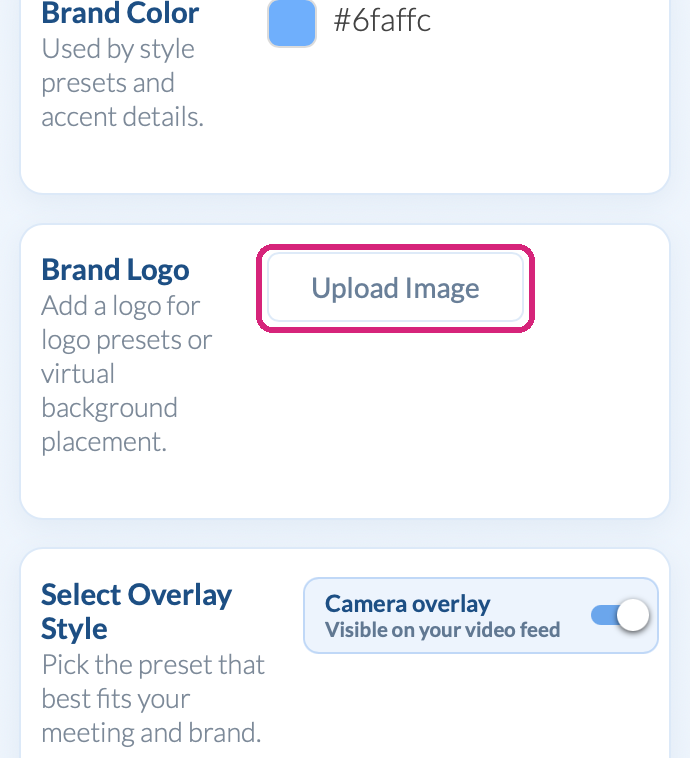 Brand Logo sits just above the styles.
- Drag your logo into the box, or click the box to choose the file.
- Your image appears so you can adjust the framing. Click Upload.
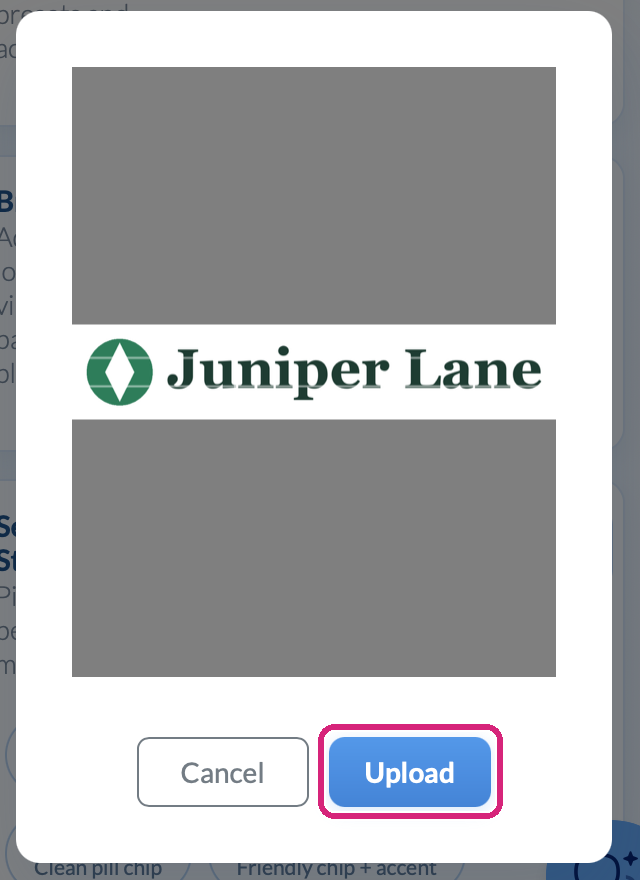 Move or zoom the image to frame it before it uploads.
 Brand Logo sits just above the styles.
 Move or zoom the image to frame it before it uploads.
Your logo now shows in the Brand Logo section, and two things happen. The style previews show it, and it goes behind you as a virtual background. The next two sections cover each one.
Put your logo on your name card
Under Select Overlay Style, the previews now show your logo on each style that uses it, and two styles built around your logo appear in the grid. Click the one you want. Your card updates a moment later.
 The previews show your logo wherever a style uses it.
Put your logo behind you
Once a logo is uploaded, Virtual Background Logo Position appears under the styles. It places your logo behind you as a Zoom virtual background, and it starts at Center unless you've picked another position before.
- Open the menu under Virtual Background Logo Position and choose Center, Bottom Left, Bottom Right, Top Left or Top Right.
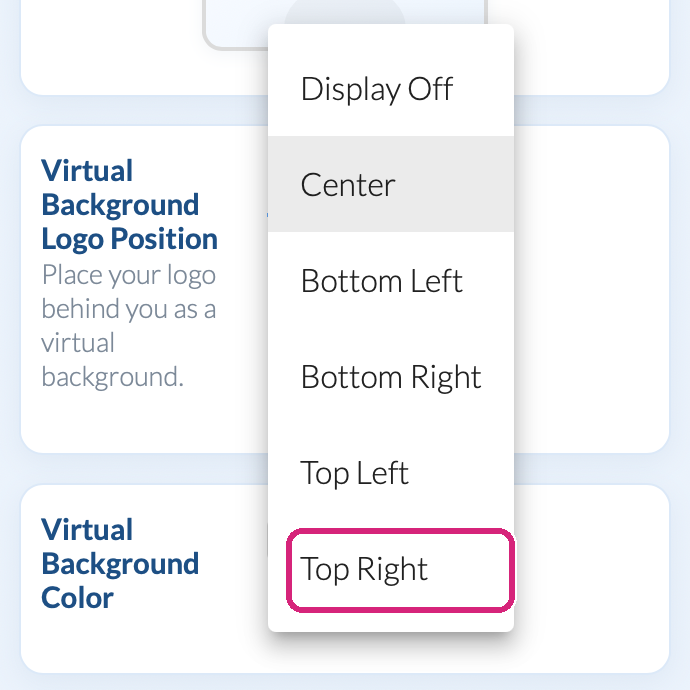 Choose where your logo sits behind you, or Display Off to keep it on your card only.
- Under Virtual Background Color, click the color square and pick the color around your logo.
 Choose where your logo sits behind you, or Display Off to keep it on your card only.
To keep your logo on your card but not behind you, choose Display Off. Your logo stays uploaded.
Change or remove your logo
- To use a different image, click Replace under your logo and upload the new one.
- To remove it, click the small x on your logo. Overlays takes it off your card and from behind you. If you were using one of the two logo styles, your card moves to Webinar Speaker, the "Bold dark broadcast bar".
What people in your meeting see
Everyone who can see your video sees your logo where you put it: on your name card, behind you, or both. Other people's video stays as it is.
 Your logo can sit on your card and behind you at the same time.
Questions people ask
Does my logo stay for the next meeting?
Yes. It's saved with your template, along with your name, title and style. To keep a different logo for each client, see Save a Zoom name overlay for each role or client.
There are gaps around me in the virtual background
See Zoom overlay looks wrong: gaps, mirrored text, or not showing.
Still stuck? Send us a message and our team will help.